
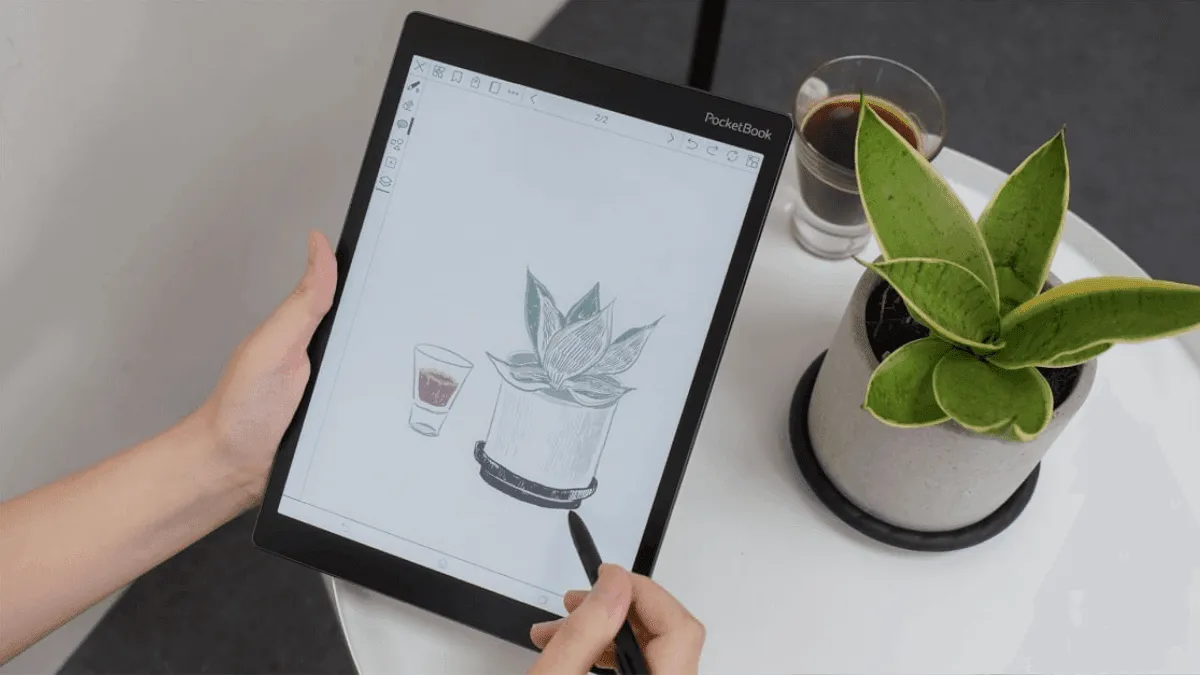
I helped a friend set up her first PocketBook last month and was reminded how different the experience is from Kindle or Kobo. PocketBook is the most open e-reader ecosystem out of the box — no walled garden, no store lock-in — and the setup reflects that philosophy.
Unboxing and first boot
PocketBook packaging is minimal. Inside the box you’ll find the device, a USB-C charging cable, and a quick-start guide. No charger brick, so use any standard USB-C adapter or plug into a computer. The device usually arrives with about 40-50% charge, enough to get through setup, but I recommend plugging it in for a proper charge before diving in. The battery needs a full cycle to calibrate the percentage meter accurately, and first charges on lithium-ion cells always deplete faster than expected.
When you first power on, it’s refreshingly straightforward: pick your language (40+ supported, which is more than any competitor), connect to Wi-Fi, set the date and time. The on-screen keyboard is responsive enough for entering a Wi-Fi password, though I’d save any heavy typing for after setup. The startup wizard walks through each step in sequence, and you can skip anything you’re unsure about — nothing is locked behind mandatory registration.
Account setup and registration
Registration is optional but worth doing. Creating a PocketBook ID unlocks cloud storage (5GB free), access to the PocketBook store, Dropbox sync, and a unique Send-to-PocketBook email address. You can create an account directly on the device under Settings → My PocketBook Account, or on pocketbook-int.com if you prefer a desktop browser.
One detail that trips up new users: the email address you use for registration is your PocketBook ID, and it’s also the address linked to your Send-to-PocketBook email. Pick an address you’ll actually remember, because you’ll use it for wireless book transfers. If you skip registration, you can add your ID later under the same settings menu.
The Dropbox integration is genuinely the best wireless transfer method on any e-reader: link your account in Settings, drop an EPUB into a folder, and it appears on the device. No cables, no email addresses to whitelist. I used to plug in my device every time I got a new book; now I just save everything to Dropbox and sync.
Wi-Fi and firmware updates
Before loading books, check for firmware updates under Settings → About → Software Update. PocketBook releases updates regularly, and they often include meaningful improvements — new features, file format support expansions, and reading engine optimizations — not just bug fixes. The device restarts automatically after installing, and your data stays intact.
If you encounter a failed update over Wi-Fi, there’s a manual fallback: download the firmware file from PocketBook’s support site onto a computer, copy it to the root of the device’s internal storage via USB, and the device will detect and apply it on the next boot. This is worth knowing even if you never need it.
Wi-Fi settings are under Settings → Network. PocketBook supports 2.4 GHz networks only on most models, which is standard for E Ink devices. If your router defaults to 5 GHz, make sure the 2.4 GHz band is enabled. The Wi-Fi radio automatically turns off when idle to save battery, which is why sync operations sometimes take a few seconds to start — the device needs to wake the radio first.
Loading books: USB, Dropbox, and PocketBook Cloud
Loading books can happen three ways. USB is the fastest — plug the device into your computer, find the Books folder, and drag-and-drop files. PocketBook reads EPUB, PDF, MOBI, FB2, DJVU, TXT, and about 20 other formats natively, no conversion needed. I loaded 200 books in under a minute.
Dropbox (under Settings → Dropbox) is better for one-off additions. Once linked, your Dropbox appears as a folder in the device’s library. Navigate to any EPUB or PDF, tap it, and it downloads to local storage. This is my go-to method for daily use. You can also drop files into a Dropbox-synced folder and they appear on the device after the next sync.
PocketBook Cloud syncs purchased books and any files you upload through the Send-to-PocketBook email address. The unique email for your device is in Settings → My PocketBook Account → Send-to-PocketBook. Attach a supported file to an email sent to that address, and it appears in the Cloud section of your library. For sideloaded content with no DRM, USB or Dropbox is faster, but the email method works when you’re away from your computer.
Customizing reading settings
Open any book and tweak the reading settings. PocketBook ships with 30+ built-in fonts, which is absurdly generous compared to Kindle’s 8. Font size, line spacing, margins, and justification all live behind the center-tap menu. I set line spacing to 1.5 and margins to narrow for maximum text density.
Beyond the basics, there are a few settings worth adjusting early. The refresh mode (under Settings → Reading → Full Page Refresh) controls how often the screen does a full clear to prevent ghosting. Setting it to every 5-10 pages gives a good balance of sharpness and battery life. The warm frontlight, available on all current PocketBook models, can be scheduled to shift warmer at night. Go to Settings → Frontlight → SmartLight to set a schedule or manually dial the color temperature.
Margin cropping for PDFs is hidden in the reader menu while a PDF is open — tap the center, choose Settings, and enable Auto Crop. This trims white space from PDF margins so the text fills more of the screen. For two-column academic papers, combine this with landscape mode for the best reading experience.
Installing additional apps and dictionaries
PocketBook allows sideloading custom dictionaries. Download dictionary files in .dic format (PocketBook’s own format) and place them in the system/dictionaries folder via USB. Good sources include the PocketBook support forum and community-maintained dictionary packs. After copying files, the device detects them automatically under Settings → Languages → Dictionaries.
Some PocketBook models also support installing additional reading apps through the built-in app store, though the selection is smaller than Android-based e-readers. The built-in reader handles most formats well enough that you rarely need alternatives, but KOReader can be installed as a third-party option if you want advanced PDF cropping or custom status bar configurations.
Tips from experience
A few things I wish I’d known on day one. The physical page-turn buttons on all PocketBook models are the device’s best feature — you can navigate an entire book without ever touching the screen, and the buttons are programmable in Settings → Key Mapping. Map the long-press actions to jump chapters or toggle the frontlight.
PocketBook’s file manager treats folders as first-class citizens. Unlike Kindle, which flattens everything into a single library view, PocketBook lets you organize books in nested folders and navigate them just like on a computer. If you have a large library, spend 10 minutes setting up a folder structure — by genre, author, or reading status — and you’ll save hours of scrolling later.
The built-in text-to-speech works with any EPUB or TXT file and reads through the device speaker. Voice quality is synthesized, not natural, but it’s serviceable for listening while cooking or doing chores. For better quality, PocketBook supports Bluetooth headphones and external speakers — pair them under Settings → Bluetooth.
If you’re traveling, grab a case and an extra USB-C cable. PocketBook uses standard USB-C, so no proprietary connectors to worry about. Battery life with Wi-Fi off and frontlight at moderate brightness runs about 3-4 weeks of daily reading, which means you can forget a charger on a two-week trip and still come home with battery to spare.