
I first noticed ghosting when I was halfway through Watchmen on my Kindle. During the darker panels, I could still see faint outlines of the previous page’s speech bubbles — like the characters were having a conversation with their own shadows. I thought my screen was defective. Turns out, it’s completely normal.
What causes ghosting technically
To understand ghosting, you need to understand what’s happening inside each pixel. E Ink displays contain millions of microcapsules filled with electrically charged pigment particles suspended in a clear fluid. White particles carry a positive charge; black particles carry a negative charge. When the display controller applies a voltage to a pixel, it pulls one set of particles to the surface and pushes the other to the bottom. That’s how you get black text on a white background — or vice versa.
The problem is that not all particles respond with identical speed. A few stragglers get left behind mid-transition, especially when the voltage is applied briefly — which is exactly what happens during a partial refresh. Think of it like stirring paint: give it a quick stir and some pigment stays clumped at the bottom of the can. Give it a thorough stir and everything mixes evenly. A full refresh is the thorough stir; a partial refresh is the quick one.
Temperature plays a role here too. The fluid inside the microcapsules gets more viscous in cold conditions, which means particles move slower and ghosting becomes more pronounced. I noticed this reading outside on a January morning at about 5 °C — the ghosting was dramatically worse than indoors. Extreme heat, like leaving an e-reader in a hot car, causes the same sluggish behavior because the fluid’s viscosity curve isn’t flat across temperatures.
Types of ghosting
Not all ghosting looks the same, and knowing which type you’re dealing with helps narrow down the fix.
Standard ghosting is a faint after-image from the previous page that clears after one or two page turns. This is the most common variety and is entirely a software/refresh-mode issue. It’s more visible in areas with large blocks of dark content — comic panels, chapter heading graphics, or heavily illustrated pages.
Persistent ghosting sticks around through multiple page turns and manual refreshes. If a ghost image survives two full screen refreshes, something is off. It could be a stuck pixel that isn’t releasing its particles properly, or it could be the display controller getting confused about which pixels need resetting.
Edge ghosting appears as faint lines along the bezel where the screen meets the frame. This is often caused by physical pressure on the display — a tight case, a heavy object sitting on the device in a bag, or even gripping the bezel too firmly while reading. Unlike standard ghosting, edge ghosting can be permanent because it’s caused by mechanical deformation of the E Ink layer, not particle behavior.
Image retention is the most serious form. It looks like a ghost image that never fully goes away, even after a full refresh or a device restart. This is rare but can happen if the same static image has been displayed for days or weeks — think of a store demo unit stuck on a single page. For most people reading normally, this shouldn’t ever occur.
Refresh mode comparison
Every modern e-reader gives you control over how aggressively it refreshes the screen, but the terminology varies by brand. Here’s what to expect from each mode:
Speed mode (called “A2” on Boox, “Speed” on PocketBook) minimizes refreshes to maximize page-turn speed. Ghosting is almost guaranteed in this mode, but it’s useful for scrolling web pages or using apps where you need responsiveness over image quality. Don’t use it for regular reading.
Balanced mode (the default on most devices) uses a partial refresh for text-heavy pages and a full refresh every handful of pages. This is the sweet spot for novels — you get fast turns and ghosting is rare enough not to bother most people.
Quality mode (“Regal” on Boox, “High Quality” on PocketBook) does a full refresh on every single page turn. It eliminates ghosting completely but every page turn comes with that signature black flash, and turns are slightly slower. Use this for manga, comics, PDFs with images, or any content where visual fidelity matters more than speed.
Reading mode on some Boox devices sits between Balanced and Quality, doing full refreshes more frequently than Balanced but not every page. It’s a good compromise if you find Balanced too ghosty but can’t tolerate the flash on every page.
Per-brand ghosting fixes
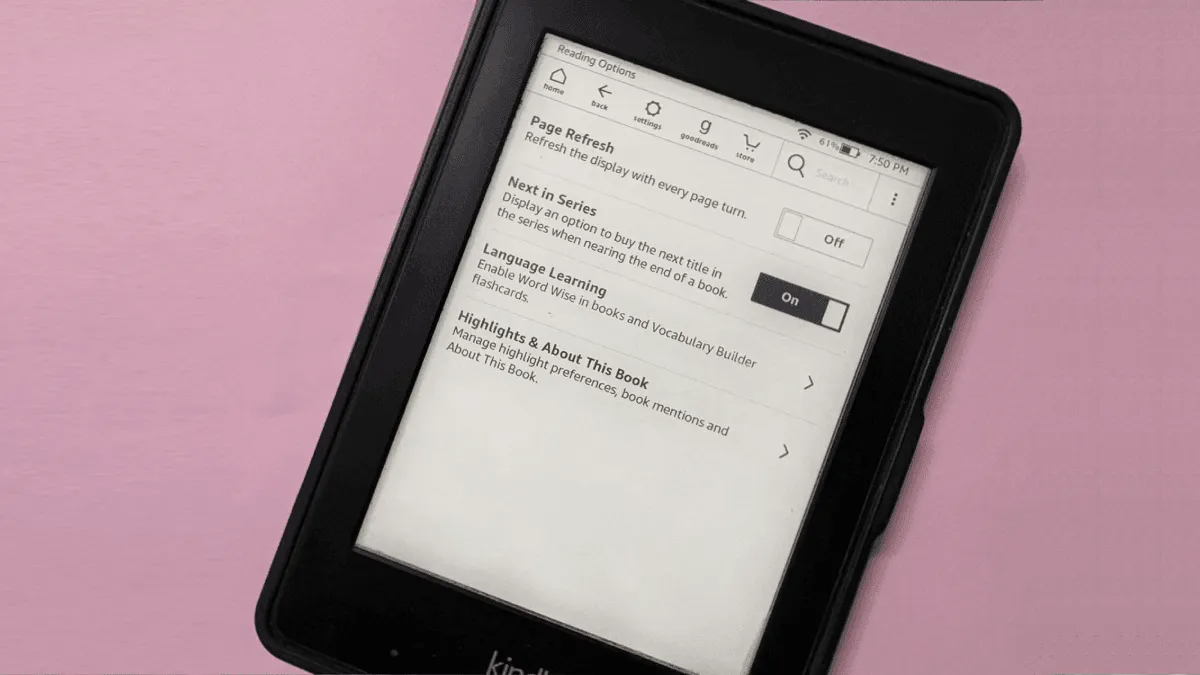
Kindle: Go to Settings → Reading Options → Page Refresh and toggle it on. This forces a full refresh with every page turn. If that feels excessive, leave it off and instead tap the top of the screen to bring up the toolbar, then dismiss it — that triggers a single full refresh on demand. I set my Kindle to refresh every page for comics and leave the setting off for novels, using the toolbar tap whenever ghosting catches my eye.
Kobo: Navigate to Reading Settings → Refresh the screen every and pick a chapter. Kobo’s 1 chapter, 10 pages, or every page. The chapter-based option works well because it syncs the refresh with natural breaks in reading. You can also trigger a manual refresh by opening and closing the reading menu mid-chapter.
BOOX: The E-Ink Center is where all the magic happens. Open it from the navigation ball or notification shade and you’ll see per-app refresh controls. Select “Regal” mode for the reading app and “Normal” or “Balanced” for everything else. BOOX also supports gesture controls — a three-finger swipe up from the bottom of the screen triggers an instant full refresh, which is my favorite shortcut on the platform.
PocketBook: Under Settings → Personalize → Full Page Refresh, you can set the interval from “Never” up to “Always.” A quick press of the power button triggers a manual refresh without putting the device to sleep, which is genuinely convenient. PocketBook’s “Speed” mode is aggressively fast but ghosty; stick to the default setting unless you’re scrolling through a long list.
When ghosting indicates a hardware problem
Most ghosting is normal and fixable, but there are warning signs that suggest something deeper is wrong. If a ghost image survives multiple full manual refreshes in a row, that’s not particle behavior — it’s a stuck pixel or a failing display controller. If you see a grid pattern of dots that won’t clear regardless of refresh mode, your screen may have a defective TFT backplane. If ghosting appears only in one quadrant of the screen and never clears, you might have a physical defect in that section of the E Ink layer. In any of these cases, contact the manufacturer — these aren’t things you can fix with settings.
Prevention
Ghosting is a fact of life with E Ink, but you can minimize it. Keep your device out of extreme temperatures — don’t leave it in a frozen car overnight or on a dashboard in summer. Avoid tight-fitting cases that press on the edges of the screen. If you’re putting an e-reader in a bag, keep the screen facing away from hard objects. And the simplest prevention of all: bump your refresh interval down by one notch. Going from “every 10 pages” to “every 5 pages” is barely noticeable in practice and keeps the screen crisp. In three years of daily reading across multiple devices, a quick settings tweak has solved every ghosting problem I’ve encountered.