
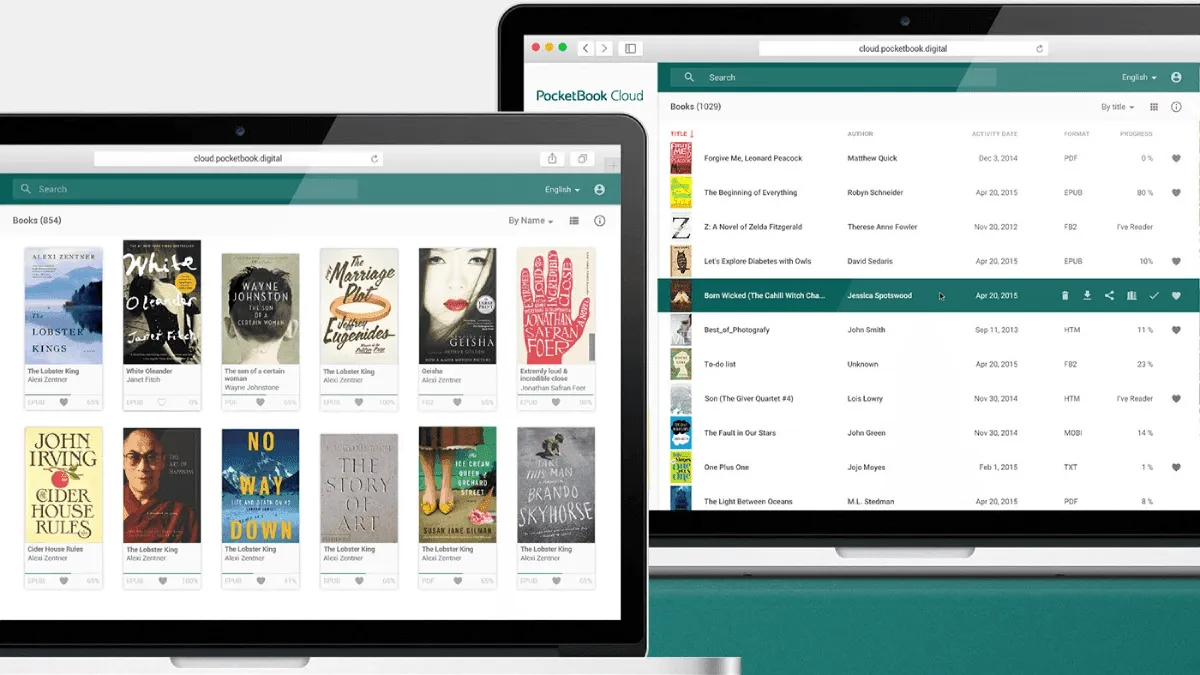
PocketBook has its own ecosystem of tools and services. Here’s everything you need to know.
PocketBook Cloud
PocketBook Cloud is the brand’s free sync service. It keeps a library, reading progress, and bookmarks in sync across devices.
Features
| Feature | Free Plan | Notes |
|---|---|---|
| Storage | 5 GB | Enough for thousands of books |
| Sync reading progress | ✅ Yes | Across PocketBook devices and apps |
| Sync bookmarks | ✅ Yes | Never lose your place |
| Wireless transfer | ✅ Yes | Upload via web, read on device |
| Device limit | Unlimited | All a PocketBook devices |
How to Set Up
- On a PocketBook, go to Settings → Accounts → PocketBook ID
- Create an account or sign in
- Enable Cloud Sync in settings
- Your books and progress sync automatically
Web Upload
Upload books from any browser:
- Go to cloud.pocketbook.com
- Sign in with a PocketBook ID
- Upload EPUB, PDF, or MOBI files
- They appear on a PocketBook wirelessly
Send-to-PocketBook Email
Each PocketBook device has a unique email address. Email books directly to a device.
How to Find Your Email
Settings → Accounts → Send-to-PocketBook Email
How to Use
- Email your EPUB, PDF, or TXT file as an attachment
- Send it to a PocketBook email address
- The book appears on a device wirelessly
Supported formats: EPUB, PDF, DJVU, FB2, DOCX, TXT, MOBI
Dropbox Integration
PocketBook has built-in Dropbox support — the easiest way to transfer files wirelessly.
Setup
- On a PocketBook, go to Settings → Accounts → Dropbox
- Sign in to your Dropbox account
- Books in your Dropbox appear in the Dropbox folder on a device
Tips
- Create a “PocketBook” folder in Dropbox for organization
- Upload files from your phone via the Dropbox app
- Changes sync wirelessly within minutes
PocketBook Desktop App
The official desktop app for managing a PocketBook library.
| Platform | Download |
|---|---|
| Windows | PocketBook Official Site |
| macOS | PocketBook Official Site |
Features
- Library management (like a light version of Calibre)
- Book format conversion
- Dictionary downloads
- Firmware updates
- Cloud sync management
When to Use It
- First-time setup (downloads initial firmware and dictionaries)
- Managing a large library without Calibre
- Installing official dictionaries
PocketBook Reader App (Mobile)
The PocketBook Reader app is available for iOS and Android. It syncs with a PocketBook Cloud.
| Feature | Benefit |
|---|---|
| Sync reading position | Switch between phone and e-reader smoothly |
| Same book, any device | Read on phone during commute, e-reader at home |
| Notes and bookmarks | Synced across all devices |
Download for iOS Download for Android
ReadRate
ReadRate is PocketBook’s social reading platform — like Goodreads but built into a PocketBook.
Features
- Rate and review books
- See what others are reading
- Book recommendations
- Reading statistics
- Community discussions
How to Access
- On a PocketBook, tap ReadRate in the main menu
- Browse popular books and reviews
- Rate books you’ve finished
Text-to-Speech (TTS)
PocketBook has the best built-in TTS of any e-reader brand. It reads books aloud through the built-in speaker or Bluetooth headphones.
Languages Supported
English, German, French, Spanish, Italian, Dutch, Russian, Polish, Ukrainian, and more.
How to Use
- Open a book
- Tap center → TTS icon (speaker)
- Choose voice and speed
- Press play
TTS Voices
- Standard voices — included, good quality
- Premium voices — downloadable, more natural
- Acapela voices — third-party, highest quality
PocketBook vs Other Brand Ecosystems
| Feature | PocketBook | Kindle | Kobo | BOOX |
|---|---|---|---|---|
| Cloud storage | ✅ 5GB free | ✅ Amazon Cloud | ✅ Kobo Cloud | ✅ Dropbox |
| Mobile app sync | ✅ Full sync | ✅ Full sync | ✅ Limited | ❌ N/A |
| Desktop app | ✅ Yes | ✅ Yes | ✅ Yes | ❌ N/A |
| Social reading | ✅ ReadRate | ✅ Goodreads | ❌ No | ❌ No |
| TTS built-in | ✅ Excellent | ⚠️ VoiceView | ❌ No | ✅ Via apps |
| Email-to-device | ✅ Yes | ✅ Send-to-Kindle | ❌ No | ❌ No |
Pro Tips
How PocketBook Cloud Compares to Kindle and Kobo Sync
Every major e-reader brand has some form of cloud sync, but they work very differently. Understanding the differences helps you decide whether PocketBook’s approach fits your workflow.
Amazon Kindle syncs everything automatically through your Amazon account: purchases, reading position, highlights, notes, and even the last page you read in a sideloaded book (if you used Send to Kindle). The tradeoff: you’re locked into Amazon’s ecosystem. Sideload a book via USB and it won’t sync anywhere. Amazon’s cloud also has no storage limit, but you don’t control the files — you can’t download your books as standard EPUBs from Amazon’s cloud.
Kobo syncs purchases and reading progress through the Kobo Store, but sideloaded books don’t sync at all — even position and bookmarks are local-only. Kobo’s Dropbox integration (on premium models like the Sage and Elipsa) lets you wirelessly transfer files, but it’s one-directional: files go from Dropbox to device, never back.
PocketBook Cloud sits between these extremes. It syncs both store purchases and sideloaded books, wirelessly and bidirectionally. Upload any EPUB to the web dashboard and it appears on every PocketBook device. Your reading position syncs regardless of where the book came from. The 5 GB free tier is generous — I’ve stored over 1,200 books and still have headroom. The key limitation: sync only works between PocketBook devices and the mobile app. There’s no desktop reader, no web reader beyond the upload interface, and no API for third-party tools.
My take: If you own multiple PocketBook devices (say, a larger InkPad for home and a compact Verse Pro for travel), PocketBook Cloud is genuinely useful — it works like Kindle’s Whispersync without the ecosystem lock-in. If you only have one PocketBook, the Dropbox integration covers file transfer and you can skip the Cloud setup entirely.
PocketBook Cloud: Deeper Setup and Daily Use
Setting up PocketBook Cloud is straightforward, but there are a few things I wish I’d known on day one. If you’re unboxing a new PocketBook, start with our first setup guide to get the basics right before tackling cloud sync.
Initial sync behavior: When you first enable Cloud Sync, PocketBook will attempt to upload every book currently on the device. If you have a large library, this can take a while — I recommend plugging in to power and connecting to Wi-Fi overnight for the first sync. Subsequent syncs only handle changes, so they’re fast.
What syncs and what doesn’t: Reading position, bookmarks, and notes sync seamlessly. Book covers and metadata usually sync, but I’ve occasionally had covers fail to upload — they still display fine on the original device, just not in the web dashboard. PDF annotations sync as flat annotations (you can’t edit them on another device), while EPUB annotations are fully editable across devices.
Web dashboard quirks: The cloud.pocketbook.com interface is functional but not polished. File uploads sometimes stall on large PDFs (over 50 MB), and there’s no progress indicator — the upload just completes silently. I’ve found it more reliable to upload books through the Dropbox integration and let them sync to the cloud from the device, rather than uploading directly to the web dashboard.
Dropbox Integration: A Workflow That Actually Works
PocketBook’s Dropbox integration is, in my experience, the best wireless file transfer on any e-reader — better than Kobo’s Dropbox, and far more flexible than Kindle’s Send to Kindle email gateway. Here’s the workflow I’ve settled into:
Folder structure I use:
Dropbox/
├── PocketBook/
│   ├── To Read/          ← Books I intend to read soon
│   ├── Reference/        ← PDFs, manuals, academic papers
│   ├── Finished/         ← Books I've read (archive)
│   └── Articles/         ← Web articles saved as EPUB
This structure syncs to the PocketBook as a mirrored folder tree. I can browse it directly from the device, download any file with a tap, and the book appears in my library. After reading, I move it to Finished/ from my computer, and the change reflects on the device when I next check.
What makes this better than alternatives: Unlike Kindle’s email approach, there’s no file size limit (I’ve sent 120 MB PDF textbooks without issue), no format conversion (you get exactly the file you uploaded), and no waiting for email delivery. Unlike Kobo’s Dropbox, PocketBook supports folder browsing — Kobo only shows a flat list of files in the Dropbox root, which becomes unusable with more than a few dozen books.
For everything else about getting the most from your PocketBook, our full PocketBook guide covers reading settings, format support, and hidden features.
Advanced Cloud Management Tips
After a year of daily PocketBook use, here are the tricks that make the cloud ecosystem work smoothly:
- Cloud as backup, not primary storage: Keep your master library in Calibre (or on your computer). PocketBook Cloud is a convenience layer, not your canonical library. If you accidentally delete a book from the cloud, there’s no trash folder — it’s gone. Having a Calibre backup gives you recovery options.
- Selective sync for large libraries: The PocketBook doesn’t download every book from the cloud automatically — it shows the full library and downloads books on demand. This is great for managing thousands of books without filling device storage, but it means you need Wi-Fi to access books you haven’t downloaded yet. Download your current reads before a trip.
- Combine Send-to-PocketBook with PocketBook Cloud: Email a book to your device, read it, and your position syncs to the cloud. Now open the mobile app and you can continue reading on your phone. This pipeline — email to device, read, sync to phone — is genuinely seamless once configured.
- Clean up old devices: If you retire an old PocketBook, sign it out of your account before disposing of it. Each signed-in device appears in your Cloud settings, and while there’s no device limit, a clean list makes troubleshooting easier.
Pro Tips
- Use Cloud for backups — your library is safe even if you lose the device
- Combine Dropbox + Cloud — Dropbox for file transfer, Cloud for reading sync
- Download TTS voices — premium voices make a big difference
- Use ReadRate for discovery — find books recommended by PocketBook users
- Calibre is still better for heavy library management — PocketBook’s desktop app is basic