
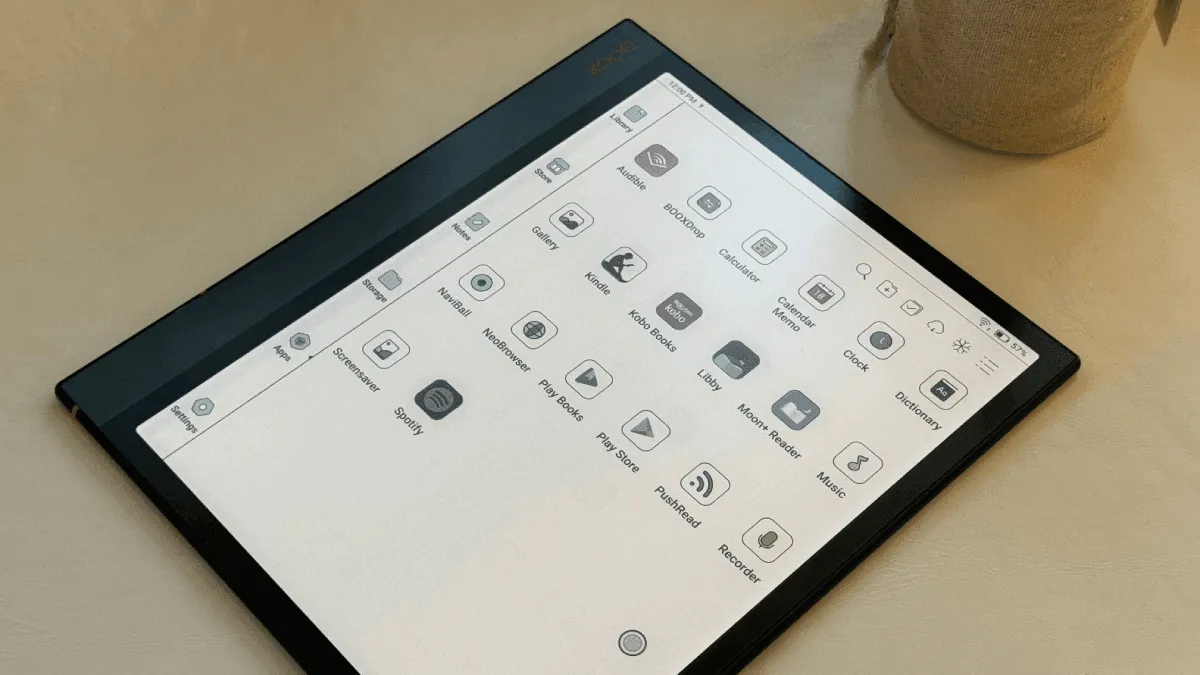
The whole reason I bought a BOOX was that it runs Android. I have Kindle books, Kobo purchases, and library loans all in different ecosystems, and I wanted one device that could handle all of them. After a year of experimenting, here is what actually earns a spot on my home screen.
Reading apps that matter
The Kindle app works surprisingly well on e-ink given that it was not designed for it. Whispersync keeps my place across my phone and the BOOX, and page-turn animations can be disabled in the app’s own settings. The Kobo app is similar — not quite as smooth as on a real Kobo, but fully functional for my Kobo library. Libby is the one I use most: borrow library books, download them, read for two weeks, return. It just works.
Moon+ Reader is the app that made me stop missing my old Kindle. It handles every format I throw at it — EPUB, MOBI, PDF — and has granular control over fonts, margins, line spacing, and color temperature. The scrolling animation is the one thing you need to turn off immediately or the e-ink ghosting will drive you nuts. Readwise Reader is a newer addition for me; it syncs highlights and annotations across devices, which makes it great if you are the type who actually wants to remember what you read.
Must-have apps beyond reading
KOReader deserves its own mention even though it overlaps with the reading apps above. It is an open-source document viewer that runs circles around most commercial readers for PDF handling. If you read academic papers, scanned documents, or large-format PDFs, KOReader’s reflow engine and crop tools make them readable on a 7- or 10-inch screen. Install the APK directly from the KOReader GitHub releases page. The built-in file browser, OPDS catalog support, and Wallabag integration (for saving web articles to read later) make it a complete reading environment.
Feedly is my RSS reader of choice on BOOX. The text-heavy interface translates well to e-ink, and you can set the article view to strip out images and scripts. The key is enabling Feedly’s built-in reader mode — it reformats any article into clean, distraction-free text. I catch up on blogs and newsletters during my morning coffee without pulling out a phone. Read You is a lighter, open-source RSS alternative if Feedly feels too heavy; it uses a local-first design and respects the e-ink display modes better out of the box.
OneNote is the note-taking app I keep coming back to. BOOX’s built-in Notes app is excellent for handwriting (low latency, great pen feel), but OneNote syncs everywhere — my phone, my laptop, and my BOOX. The Android version of OneNote supports handwriting input with the BOOX stylus, and everything shows up on my other devices within seconds. I use the BOOX Notes app for quick scribbles and OneNote for anything I need to reference later on a computer. Evernote and Notion both work on BOOX too, but their mobile apps are heavier and have more animations that fight the e-ink screen. OneNote strikes the best balance.
Syncthing solves the file transfer problem elegantly. Instead of emailing files to yourself or plugging in a USB cable, Syncthing keeps folders synchronized between your BOOX and your computer over Wi-Fi. Set up a “Books” folder, a “PDFs” folder, and a “Notes” folder, and anything you drop into them appears on your BOOX automatically. It runs in the background and is far less fuss than cloud storage apps that require constant internet access.
Pocket and Instapaper both work well for saving long-form articles to read on e-ink. The reading experience on Pocket is good out of the box; Instapaper requires a bit more tweaking in the BOOX E-Ink Center to eliminate scrolling animations. I use Pocket because the free tier is generous, but either one will turn your BOOX into a dedicated long-read device.
App categories to avoid
Not every Android app belongs on e-ink. Here is what you should skip:
- Video apps (YouTube, Netflix, etc.). The BOOX screen refreshes too slowly for video playback. It technically works, but watching a movie at roughly 2 frames per second with heavy ghosting is not an experience anyone wants. Use your phone or tablet for video.
- Games. Even simple puzzle games feel sluggish on e-ink. Turn-based games like chess or word puzzles are borderline acceptable, but anything with real-time movement or animations is going to be a frustrating smear. If you absolutely must game on e-ink, stick to text-based interactive fiction.
- Animation-heavy social media (Instagram, TikTok, Twitter/X with auto-play video). The endless scroll is the worst possible UI pattern for e-ink — it demands constant screen refreshes and generates ghosting with every swipe. If you need to check Twitter, use the browser in reader mode instead.
- Google Maps. The constant map redraws as you pan and zoom will make the screen flicker constantly. It is technically functional for looking up a static address, but navigation is out of the question.
- Anything with splash screens or animated transitions built into the UI. Modern Android apps love animated loading spinners, swipe-to-dismiss gestures, and smooth transition effects. Every single one of those looks terrible on e-ink. Before installing any app, ask yourself: does the core interaction of this app involve scrolling or animation? If yes, it is probably a bad fit.
A good rule of thumb: if the app is text-first and interaction-light, it will work. If it relies on motion, color, or rapid visual feedback, it will not.
Optimizing apps for e-ink: the BOOX E-Ink Center
The single most important thing you can do with any BOOX device: go into the E-Ink Center for every app you install and configure the refresh mode. The E-Ink Center is accessible by swiping down from the top-right corner while the app is open, or from the navigation ball if you have it enabled. It gives you per-app control over how the screen refreshes.
For reading apps (Kindle, Kobo, Libby, Moon+ Reader, KOReader), use Regal Mode. This fully refreshes the screen on every page turn, eliminating ghosting entirely. Page turns are the only interaction in a reading app, so the slight flicker of a full refresh is not disruptive. You will get a clean, crisp display for every page of text.
For scrolling apps (Feedly, Pocket, browsers, email clients), use Speed Mode. This refreshes the screen more frequently during scrolls at the cost of introducing some ghosting. The trade-off is acceptable because you need the responsiveness to follow where you are in a long article or email thread. If ghosting gets too distracting, a quick tap of the manual refresh button clears it.
For static apps (settings, launchers, note-taking apps with minimal UI changes), use Normal Mode. It balances refresh quality and power consumption for screens that do not change often.
Beyond refresh modes, there are a few universal settings that make every app better on BOOX:
- Turn off animations system-wide. Go to Android Settings → Accessibility → Remove animations. This disables the transition effects that make navigation feel smooth on a phone but look like a flickering mess on e-ink.
- Enable dark theme where available. Not for battery (e-ink does not care about dark mode the way OLED does), but because light text on a dark background reduces the visual impact of ghosting. Dark areas of the screen ghost less visibly than light areas.
- Increase font size and tap targets. What feels comfortable on a 6-inch phone screen can feel tiny on a 10-inch e-ink tablet held further away. Bump the system font size up in Android settings and adjust individual apps to use larger UI elements.
- Disable auto-play and video previews. In every app that has the option, turn off auto-playing media. This is buried in different places for each app but is consistently under some variation of “Settings → Autoplay” or “Settings → Data Saver.”
Play Store setup and app installation
Most BOOX devices ship with the Google Play Store pre-installed, but it is not enabled by default. Go to Settings → Applications → Google Play Store and toggle it on. The device will prompt you to sign in with a Google account. Once enabled, you can install apps from the Play Store just like any Android phone.
If your BOOX model does not have the Play Store (some older or China-market models skip it), you have two options. The easiest is F-Droid, an open-source app store that does not require Google services. Install the F-Droid APK from f-droid.org using the BOOX browser, and you will have access to many of the apps mentioned above — KOReader, Syncthing, Read You, and EinkBro are all on F-Droid.
The second option is sideloading APKs directly. Download APK files from trusted sources (APKMirror, the developer’s own GitHub releases) and open them with the BOOX file manager to install. You need to enable Settings → Security → Unknown sources first.
Performance tips for keeping a BOOX snappy
BOOX devices run on modest hardware by smartphone standards — mid-range MediaTek or Qualcomm processors with 3 to 6 GB of RAM. They are fast enough for reading and note-taking, but they can bog down if you treat them like a phone. A few habits keep things responsive:
- Close apps you are not using. Android on BOOX does not have the RAM headroom of a flagship phone. Swipe apps away from the recent apps screen when you are done with them, especially memory-heavy ones like the Kindle app or a browser with multiple tabs.
- Limit background sync. Go to Android Settings → Accounts and turn off auto-sync for services you do not need constantly updating. Syncthing and email are worth keeping; Google Photos backup is not.
- Clear the BOOX launcher cache periodically. The default launcher can accumulate cached thumbnails and book covers that slow down the home screen. Settings → Apps → ContentBrowser → Clear Cache fixes this.
- Avoid live wallpapers, widgets, and animated clock faces. Every visual element on the home screen that changes requires a screen refresh. Keep the home screen as static as possible. Nova Launcher with a monochrome icon pack and no widgets is the ideal setup.
- Restart occasionally. Once every couple of weeks, a full restart clears out whatever memory fragmentation has built up. It takes 30 seconds and makes the device feel fresh again.
Making the home screen less chaotic
BOOX’s default launcher is functional but ugly — a grid of icons and book covers that looks like it was designed in 2014. I installed Nova Launcher, switched to a monochrome icon pack (Whicons is free and comprehensive), set the grid to something minimal like 3×4, and suddenly the device felt like a purposeful reading tool instead of a slow Android tablet. The gesture to open the app drawer with an upward swipe keeps the home screen clean. Hide the apps you rarely use and keep only the essentials visible.
For a simpler approach, Niagara Launcher is a minimalist launcher that shows a vertical list of your favorite apps with large, legible text. It was designed for distraction-free phone use, but its design philosophy translates perfectly to e-ink. The free version does everything most BOOX users need.
If launchers feel like overkill, at minimum rearrange the stock launcher’s home screen. Move reading apps to the front, banish the browser and any pre-installed bloatware to the second page, and pin the E-Ink Center toggle somewhere accessible. The goal is to make the device feel like an e-reader first and an Android tablet second.