
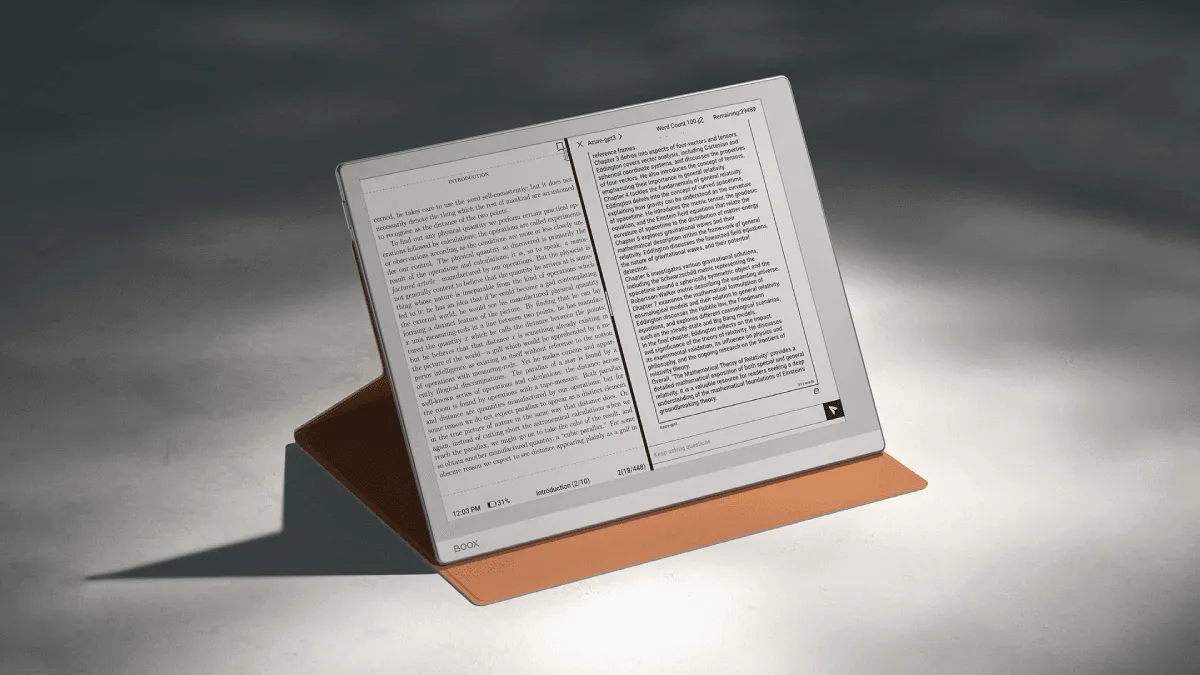
BOOX’s split-screen mode is one of those features I did not think I would use — until I started reading academic papers for a side project. Now I cannot imagine going back. Having a document on one side and a blank notepad on the other, both visible at the same time on an e-ink screen, is a workflow that genuinely changes how you engage with material.
How split-screen works on BOOX
BOOX devices run a customized version of Android with Onyx’s own window management layer on top. Split-screen mode divides the display into two independently scrollable panes, each running its own app. The split is a persistent layout — it is not a temporary overlay, and both apps remain fully interactive. You can scroll on the left, write on the right, switch focus between panes, and resize the divider at any time.
Behind the scenes, BOOX uses Android’s built-in multi-window APIs, but Onyx has tuned the implementation for e-ink. The display driver coordinates refreshes across both panes so you do not get the disjointed flickering that happens when you try split-screen on a phone. BOOX also enforces per-app refresh modes independently — the reading side can stay on Regal mode for clean text while the note-taking side runs Speed mode for low-latency pen input. This per-pane refresh control is something no other e-ink device does as cleanly.
Step-by-step setup
There are two ways to enter split-screen. The first is the swipe gesture: swipe inward from the right edge of the screen and hold for a moment, then drag toward the center. A sidebar appears with compatible apps and a split-screen indicator — drag an app to either the top or bottom half to anchor it there. It feels natural after a few tries, and it is the fastest method once you build muscle memory.
The second method uses the Recent Apps button: tap it to open the app switcher, then tap the split-screen icon on any app card (it looks like two stacked rectangles). That app snaps to one half, and the other half shows your app list for selecting a companion app. This method is slightly slower but more discoverable if the swipe gesture is not working for you.
Once both apps are open, a divider bar runs horizontally between them. You can drag it up or down to resize the panes. For reading-heavy sessions, I go 70/30 with the big side for content. When I am taking meeting notes from a document, I flip it to 30/70. There is no minimum or maximum beyond what each app can reasonably display — some apps refuse to run below a certain height, which is an Android constraint, not a BOOX one.
To exit split-screen, drag the divider all the way to the top or bottom edge until one app fills the screen entirely. Alternatively, tap the Recent Apps button and close one of the apps from the switcher.
App pairs: save your favorite combinations
Once you find a combination you love, save it as an app pair. With both apps open in split-screen, open the Recent Apps view and tap the pair icon on the combined card. Name the pair something descriptive — I have “Research Mode” (NeoReader + Notes) and “Language Study” (Moon+ Reader + dictionary app). The pair appears on your home screen as a single icon; tapping it launches both apps in their saved arrangement instantly. This feature saves me from reconfiguring split-screen every time I sit down to work, and I wish every tablet OS had it.
Productivity workflows that actually make sense
My daily driver setup is a PDF on the left and the Notes app on the right. I highlight a passage in NeoReader, jot a quick thought on the right, and keep going without switching apps. It is transformed how I digest technical material — the friction of app-switching to take a note used to make me skip writing things down, and now I capture far more of what I read.
For language learning, keep a foreign-language book on one side and a dictionary app on the other. My wife uses this setup: a Spanish novel on the left, a Spanish-English dictionary on the right. She can tap a word to look it up without leaving the reading app, and the split-screen keeps both visible. The built-in NeoReader has dictionary integration, but having a dedicated dictionary app on half the screen gives you example sentences, conjugation tables, and usage notes that a pop-up definition cannot.
For translation work, try a PDF in the source language on one side and a browser with a translation tool on the other. DeepL and Google Translate both work in split-screen on BOOX. Paste a paragraph, read the translation next to the original, and compare. The e-ink screen makes this comfortable for long translation sessions in a way that a laptop screen does not.
For research and reference, keep a PDF on one side and a web browser with supplementary material on the other. I use this when working through technical documentation — the spec document on the left, Stack Overflow or the project’s GitHub issues on the right. The browser runs in EinkBro, a browser optimized for e-ink that strips out animations and renders clean text. It is not fast, but for static reference pages it works perfectly.
Keyboard shortcuts for power users
If you use a Bluetooth keyboard with your BOOX — and the Tab Ultra and Tab X support this natively — there are shortcuts worth memorizing. Cmd + Shift + S toggles split-screen on and off. Cmd + Shift + D swaps the left and right panes. These work in any app and make split-screen feel like a desktop window manager. I use them on my Tab Ultra and it makes me feel like I am getting away with something.
Supported apps and limitations
Not every Android app supports split-screen on BOOX. Most reading apps do: NeoReader (BOOX’s built-in reader), Kindle, Kobo, Libby, Moon+ Reader, and KOReader all work. The Notes app works perfectly. Browsers generally work — EinkBro, Firefox, and Chrome all cooperate. Dictionary apps, RSS readers, and most text-based productivity apps are fine.
Apps that do not work well include anything that forces portrait-only orientation (some older reading apps), apps that require the full screen for gesture navigation, and apps with fixed layouts that cannot scale down. I have had a few niche reading apps just refuse to enter split-screen — the system tries, the screen flashes, and nothing happens. Stick to well-maintained Android apps and you will rarely hit this.
There is also a practical limitation: screen size. On a 7.8-inch BOOX, split-screen means each pane is roughly the size of a large smartphone screen. For PDFs with small text, that can be tight. The 10.3-inch models (Note Air series, Tab Ultra) are the sweet spot for split-screen — each half is large enough for comfortable reading. On the 13.3-inch Tab X, split-screen gives you two iPad Mini-sized panes, which feels luxurious.
E-ink optimization tips for split-screen
Split-screen on e-ink introduces unique challenges that do not exist on LCD tablets. Ghosting is the main one. With two apps refreshing independently, you can end up with visible afterimages from one pane bleeding into the other. Here is how to minimize it:
Set each pane to a different refresh mode. For the reading side, use Regal Mode — it fully refreshes on every page turn, eliminating ghosting. For the note-taking side, use Speed Mode — it prioritizes low latency for pen input, and the occasional ghosting on that side is less distracting because you are looking at handwriting, not typeset text.
Enable a manual refresh gesture. On most BOOX devices, a long-swipe up from the bottom-left corner triggers a full screen refresh. Use this whenever ghosting builds up. I tap it reflexively every few paragraphs now.
If split-screen feels laggy, close background apps first. BOOX devices ship with 3 to 6 GB of RAM, and running two apps side by side plus a few background services can push that limit. Swipe away unused apps from the Recent Apps view before entering split-screen. Dropping to a 50/50 split also helps — uneven splits can confuse the window manager on lower-RAM models.
Turn off animations system-wide. Go to Android Settings → Accessibility → Remove animations. This disables transition effects that look like a flickering mess on e-ink and also frees up a small amount of processing overhead.
If ghosting is still bad, add a floating manual refresh button to the screen. BOOX’s Navigation Ball can be configured with a one-tap screen refresh. Go to Settings → Navigation Ball → Customize and add the refresh action. Having a dedicated refresh button visible during split-screen sessions is the single most effective anti-ghosting measure I have found.
If notes are not saving, double-check auto-save is enabled in the Notes app settings. I definitely lost a page of thoughts before I figured that one out.
How BOOX split-screen compares to other e-readers
Kindle does not do split-screen. At all. The closest thing is the “About This Book” panel that slides over your current page, and that is not remotely the same.
Kobo does not offer split-screen either. Nickel is a single-app operating system with no window manager. You can launch external readers like Plato or KOReader, but they run full-screen — no side-by-side arrangement.
reMarkable has a well-implemented split-screen mode, limited to the built-in notebook and PDF reader. You cannot split arbitrary apps because there are no third-party apps. For pure reading-and-note-taking workflows, reMarkable’s implementation is polished and fast, but it is a walled garden.
Supernote offers split-screen between documents and notes, similar to reMarkable but with better handwriting recognition. Again, limited to the built-in apps.
BOOX is the only e-ink platform that lets you split-screen any two Android apps. That flexibility is the trade-off for BOOX’s slightly rougher software polish compared to reMarkable or Supernote. If your workflow fits inside a single ecosystem’s apps, those devices feel better. If you need a dictionary app, a web browser, a third-party reader, and a note-taking app all accessible simultaneously, BOOX is the only game in town.