
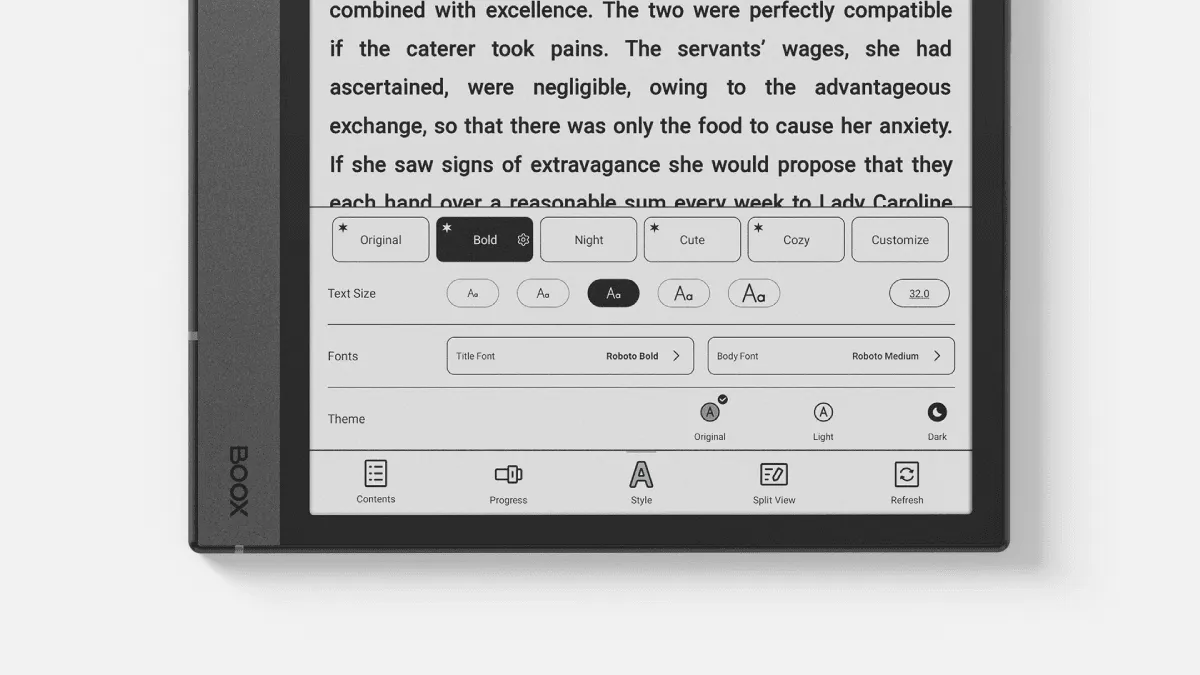
NeoReader is Onyx BOOX’s built-in reading app, and it took me a few weeks to realize it’s not just a PDF viewer — it’s the best PDF tool on any e-reader, period. Unlike most e-readers that slap a basic PDF renderer onto the device and call it a day, BOOX built NeoReader from the ground up to handle the unique challenges of reading A4 and letter-sized PDFs on a 7 to 13-inch E Ink screen. Once you understand its core capabilities — reflow, annotations, OCR, and display tuning — you stop fighting PDFs and start actually reading them. This guide walks through everything NeoReader can do and how to build an efficient PDF reading workflow around it.
What NeoReader actually is
NeoReader ships with every BOOX device and serves as the default app for PDF, EPUB, MOBI, DJVU, CBR, CBZ, and several other formats. For EPUBs it’s a solid reader, but for PDFs it’s in a league of its own. The app renders PDFs natively using Onyx’s own engine rather than repackaging an open-source library, which means it handles complex layouts, embedded fonts, and scanned documents better than any third-party alternative on the Play Store. It launches quickly, keeps page-turn latency low even on image-heavy files, and integrates deeply with the BOOX system — the navigation ball, gestures, and split-screen all work seamlessly with it. If you’re coming from a Kindle or Kobo, the sheer number of PDF-focused settings will feel overwhelming at first, but that configurability is exactly why NeoReader is worth learning.
PDF reading modes
NeoReader offers multiple viewing modes that go far beyond the basic fit-to-width you’ll find on most e-readers. The three core modes — Original, Reflow, and Article — each serve a distinct purpose.
Original mode displays the PDF exactly as it was laid out, preserving fonts, columns, images, and page numbering. This is essential for textbooks with diagrams, technical manuals with code blocks, and any document where the visual arrangement carries meaning. You can pinch-zoom, pan around, and use the auto-crop feature to trim white margins so the text fills more of the screen.
Reflow mode is where NeoReader earns its reputation. Instead of simply zooming into the page and forcing you to scroll horizontally, reflow extracts the text stream and reformats it like an EPUB. You control the font size, line spacing, and margins independently of the original document. Standard reflow works for most single-column PDFs. Aggressive reflow tackles double-column academic papers and complex magazine layouts by detecting column boundaries and reading each column in sequence. It’s not perfect — diagrams and tables sometimes break — but it’s better than any other e-reader I’ve tested, including KOReader’s reflow engine. For pure-text PDFs like novels or reports, reflow mode transforms the reading experience from “I’ll squint through this” to “this feels like a proper ebook.”
Article mode is a newer addition that intelligently identifies the main content block on a page and zooms directly to it, cropping out headers, footers, sidebars, and page numbers automatically. It’s ideal for news articles saved as PDFs and web-to-PDF exports where the page chrome gets in the way.
Column mode deserves its own mention. For multi-column PDFs where reflow doesn’t quite get the order right, you can manually define a reading zone and NeoReader will navigate through columns in the correct sequence. Drag the zone selector over the first column, and NeoReader steps through each column on the page before advancing. This is a lifesaver for dense three-column journal layouts.
Annotation and markup tools
The annotation system in NeoReader is deep enough to replace a dedicated note-taking app for many users. You get highlighters in four colors (yellow, green, blue, pink), underlines in both straight and wavy styles, strikethrough, freehand drawing with adjustable stroke width and opacity, typed text boxes you can position anywhere, and sticky notes for longer comments that stay collapsed until you tap them.
Everything collects in a unified annotations panel — swipe from the right edge of the screen to open it — where you can see every mark organized by page, tap to jump to its location, edit or delete individual annotations, and filter by type. The real power move is the export: you can save the annotated PDF with all marks embedded, which means colleagues opening the file in Adobe Acrobat or Preview will see your highlights and comments exactly as you placed them. Alternatively, you can export annotations as a separate text file with page references, which is useful for compiling reading notes into a research document.
For heavy annotators, I recommend setting up the stylus side button (on BOOX devices that support it) to toggle between highlight and erase modes. It cuts down the constant mode-switching that slows down active reading.
OCR features
I read a lot of scanned PDFs from older books, and the OCR feature is the single biggest reason I stick with BOOX over other e-readers. Tap the OCR button on any image-based PDF, select the recognition language, and wait. NeoReader processes each page, embedding an invisible text layer over the scanned image. When it finishes — a 200-page book takes about five to ten minutes on a recent BOOX device — the previously dead image text becomes selectable, highlightable, and searchable.
The OCR engine supports English, Chinese (Simplified and Traditional), Japanese, Korean, French, German, Spanish, Italian, Russian, and several more languages. You can even select multiple languages for bilingual documents. I’ve thrown some genuinely terrible scans at it — crooked pages, faded ink, 19th-century typefaces — and it handles them better than expected. Once OCR completes, you can long-press any word to look it up in the dictionary, search the entire document for phrases, and highlight passages that persist in the annotations panel. This turns a static photo of a book into something that behaves nearly like a native ebook.
A practical tip: run OCR on scanned PDFs before you start reading, not during. The processing time isn’t long, but waiting mid-chapter breaks your flow. I batch-OCR everything when I first load books onto the device.
Contrast and display settings
PDFs come from wildly different sources — crisp digital typesetting, faded library scans, low-contrast photocopies — and NeoReader gives you the controls to compensate. The contrast slider darkens text and sharpens edges, which is particularly effective on greyish scans where the ink has faded. You can apply it selectively: increase contrast for the whole document, or dial it up only on pages where the text is hard to read.
The whitening and darkening adjustments work on image-based PDFs to clean up backgrounds. Watermark removal (a checkbox in the display settings) attempts to suppress faint background watermarks on academic papers and corporate documents. There’s also a built-in color filter — switch to inverted mode for reading white-on-black PDFs at night, which is gentler on the eyes with the frontlight off.
For the best PDF reading experience, I set auto-crop to “automatic” so NeoReader trims white margins on every page. Combine that with landscape mode for textbooks (two-page spreads on the BOOX Tab X are fantastic) and portrait mode with reflow for single-column papers. The app also lets you set a custom crop region per document, which is useful for PDFs with inconsistent margins.
Comparison with alternative PDF readers on BOOX
Since BOOX devices run Android, you can install any PDF reader from the Play Store. I’ve tested the main contenders extensively.
KOReader is the closest competitor for reflow and has a passionate following. Its reflow engine handles columns well and it’s highly customizable. However, KOReader’s annotation system is weaker — highlights don’t embed into exported PDFs cleanly, and handwriting support is limited compared to NeoReader’s native stylus integration. KOReader also doesn’t have built-in OCR; you need to pre-process PDFs with an external tool.
Adobe Acrobat Reader on Android is fine for quick viewing but feels sluggish on E Ink. The annotation tools are decent, but there’s no reflow mode and the interface is designed for LCD screens with smooth scrolling, not E Ink’s page-turn paradigm.
Xodo and ReadEra are solid Android PDF readers with good annotation support, but neither offers the deep E Ink optimization that NeoReader provides — things like the Regal waveform for ghost-free page turns, proper frontlight integration, and stylus latency tuning that makes handwriting feel responsive.
For pure PDF reading on BOOX, NeoReader wins on integration. The only reason to use an alternative is if you need a specific feature not available in NeoReader, like cloud sync to a particular service or a specialized annotation format.
Workflow tips for academic and research reading
If you’re a student or researcher dealing with dozens of papers per week, NeoReader can anchor an efficient workflow. Here’s what works for me.
Load papers onto the device through BOOX’s cloud sync (Dropbox, Google Drive, OneDrive, or WebDAV are all supported) or via USB. Create folders by project or course so you can navigate quickly. When a new batch of papers arrives, run OCR on any scanned ones immediately — do this once and you won’t have to think about it again.
For first-pass reading, use highlight-only mode. Read through the paper and highlight key claims, methods, and results. Don’t annotate deeply yet — just mark what matters. After finishing, open the annotations panel and scan your highlights. This gives you a condensed summary of the paper without re-reading it. For papers you need to understand deeply, do a second pass with handwritten margin notes and typed comments.
Export annotated PDFs back to your computer for reference management. The embedded annotations survive Zotero imports, which means your BOOX highlights show up alongside your desktop notes. If you prefer plain-text notes, export just the annotation list and paste it into Obsidian, Notion, or whatever system you use.
Split-screen mode is underrated for research. Open the PDF on the left and the Notes app on the right. As you read, type or handwrite your own synthesis on the right side. This keeps your thinking active and produces a study document you can review later without reopening the paper. For language learners, pair a PDF with the dictionary in split-screen — tap a word in NeoReader and the definition pops up instantly.
The final tip: use the BOOX navigation ball to customize quick actions. I set mine to toggle reflow mode, open the annotations panel, and switch between portrait and landscape. Three taps that save dozens of menu dives over a reading session.