
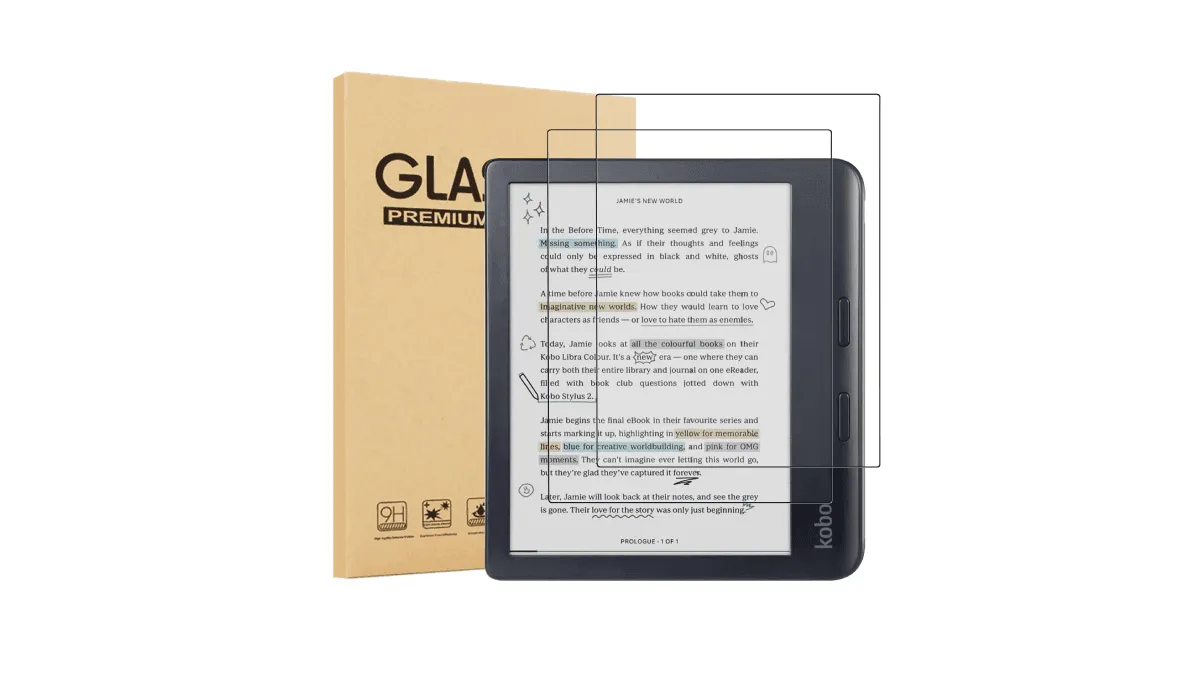
I put a matte screen protector on my Kindle Paperwhite last year. I removed it twenty minutes later.
Here’s what happened. The screen went from crystal-clear to… hazy. Not unreadably bad, but bad enough that I noticed. Text that had been razor-sharp at 300 ppi now looked like it had a faint gauze over it. The anti-glare benefit was real — outdoors the screen was more readable — but I read indoors 90% of the time. The trade-off wasn’t worth it.
That experience made me dig deeper. I’ve since tested protectors on a Kobo Libra, a BOOX Note Air, and a reMarkable 2. The short answer: it depends on your device and how you use it. Here’s the long answer.
Are e-reader screens easy to scratch?
Modern E Ink displays use a plastic substrate rather than glass on most models (the Kindle Scribe and reMarkable use glass, which is part of why they weigh more). Plastic is lighter and more flexible, but it scratches at roughly a 3 on the Mohs hardness scale — meaning a fingernail won’t scratch it, but a grain of sand or a key absolutely will.
If you carry your e-reader in a dedicated sleeve or a case with a flip cover, you’re fine. If you toss it naked into a backpack alongside a charger cable, a pen, and yesterday’s granola bar wrapper, you’re rolling dice. The screen on a Kindle or Kobo isn’t fragile in the drop-sense — I’ve seen them survive waist-high falls — but it is scratch-prone in a way a smartphone with Gorilla Glass is not.
This is the core tension: e-reader screens are softer than phone screens, but most people treat them more casually than phones because they’re cheaper and feel less “premium.” That’s where protectors earn their keep.
Matte: the popular choice I regretted
Matte protectors promise to cut reflections and add a paper-like texture. They do both. The problem is they also diffuse light passing through them, which on a 300 ppi E Ink display means you’re paying to reduce the sharpness you paid for. If you read outside a lot — beach, park bench, sunny commute — the trade-off might pencil out. For me, it didn’t.
There is one exception: devices that already have a textured screen layer. The reMarkable 2 and BOOX Note Air come with a factory-applied textured surface for stylus friction. Adding a matte protector on top of that is redundant and will make the display genuinely blurry. On a smooth-screen device like a Kindle Paperwhite or Kobo Clara, a high-quality matte protector (the kind from Supershieldz or Brotect) adds noticeable grain but not “can’t read this” grain. It’s a preference call.
Glossy and tempered glass: different compromises
Glossy PET film protectors keep the clarity intact but turn an e-reader into a mirror under direct light. If you’ve ever tilted a naked e-reader to dodge a window reflection, imagine that times two. They’re the cheapest option and the easiest to install bubble-free, but I can’t recommend them unless you read exclusively in dim, controlled lighting.
Tempered glass adds actual drop protection, which matte film doesn’t, but it’s thicker — you feel the edge every time you swipe from the bezel. On a flush-screen device like the Oasis or newer Paperwhite, it’s less obtrusive. On a recessed-screen Kindle Basic, the raised edge catches your thumb.
The glass option makes the most sense on stylus-driven devices. The reMarkable 2 and Kindle Scribe both have glass substrate screens that benefit from an extra sacrificial layer. A tempered glass protector on these absorbs the micro-scratches that accumulate from months of stylus use, and the edge profile is less noticeable on the larger slab form factor.
Impact on screen clarity and writing feel
Every protector degrades clarity to some degree. The question is whether you notice it. Here’s a rough ranking from best-to-worst clarity:
- No protector — baseline, obviously.
- High-quality tempered glass — about 95–97% clarity. Slight reflections but no haze.
- Glossy PET film — around 92–95% clarity. Sharp but reflective.
- Premium matte film (Supershieldz, Brotect AirGlass) — around 85–90% clarity. Noticeable grain on close inspection.
- Budget matte film (no-name Amazon brands) — 75–85% clarity. Visible haze, text softness.
For writing feel, the equation flips. A bare glass screen (Scribe, reMarkable) is slick — your stylus tip slides with almost no resistance, which some people hate. A matte protector adds tooth. Premium matte films from brands like Doodroo and Paperlike (yes, they make e-reader versions) add just enough texture to feel closer to pencil-on-paper without destroying clarity. If you annotate PDFs or sketch, the writing-feel argument for a matte protector is stronger than the reading-clarity argument against it.
| Protector Type | Clarity | Scratch Protection | Drop Protection | Writing Feel | Best For |
|---|---|---|---|---|---|
| None | 100% | None | None | Varies | Sleeve/case users, indoor readers |
| Matte PET film | 85–90% | Good | Minimal | Paper-like | Outdoor readers, stylus users |
| Glossy PET film | 92–95% | Good | Minimal | Slick | Controlled lighting, budget pick |
| Tempered glass | 95–97% | Excellent | Good | Slick | Stylus devices (Scribe, reMarkable) |
Recommended brands per device
Not all protectors fit all e-readers. Here’s what I’ve tested and can vouch for:
Kindle Paperwhite (11th/12th gen): Supershieldz matte film is the best fit-to-price ratio. It covers the screen edge-to-edge on the flush-front design and doesn’t lift at the corners over time. Brotect AirGlass is a step up in clarity at a slightly higher price.
Kindle Scribe: Go tempered glass. The Spigen GlasTR is cut precisely and adds negligible weight to a device that’s already heavy. If you write constantly, Doodroo’s paper-feel film is the closest you’ll get to actual notebook texture.
Kobo Libra Colour / Clara BW: Brotect matte is the default pick — it’s one of the few brands that makes exact Kobo cuts. The factory screen on the Libra Colour is already slightly textured, so you don’t lose as much clarity with matte as you do on a Kindle.
BOOX (Note Air, Tab Ultra): BOOX ships many models with a pre-applied screen protector. If yours has one, don’t remove it — that factory film is calibrated to work with the BOOX stylus. If it wears out, BOOX sells official replacements. Third-party films often mess with the Wacom EMR layer and cause wavy lines near the edges.
reMarkable 2: Use a reMarkable-branded or Doodroo film. The reMarkable’s writing surface is its entire identity — cheap protectors ruin it. The official Marker Plus tips wear faster on gritty third-party films, so factor that into the long-term cost.
Installation guide
Installing a screen protector on a 6-to-10-inch device is easier than on a phone — fewer cutouts and curves — but dust is still your enemy. Here’s the method that’s never left me with a bubble:
- Steam up the bathroom. Run a hot shower for five minutes with the door closed. The humidity pulls dust out of the air. This sounds ridiculous. It works.
- Clean the screen. Use the included alcohol wipe, then the microfiber cloth. Hold the device under a bright light at an angle to spot any remaining specks.
- Use the dust-removal sticker. Most kits include one. Dab, don’t wipe — wiping can introduce new dust.
- Align before peeling. Place the protector on the device without removing the backing film. Line up the cutouts with the bezel. Use hinge tape (two strips of scotch tape along one edge) if the kit didn’t include an alignment frame.
- Peel and drop. Peel the backing halfway, align the exposed edge, and let the protector fall into place. Smooth from center outward with a credit card wrapped in the microfiber cloth.
- Peel the outer layer slowly. Many films have a second protective sheet on top. Peel at a sharp angle, not straight up — this reduces the chance of lifting the film.
Total time: about 10 minutes if you’re careful. If a bubble won’t smooth out, lift the nearest corner with a piece of tape and re-lay that section. Small bubbles from trapped moisture usually vanish within 24 hours.
Touch sensitivity matters
This is what nobody mentions in the Amazon reviews. Adding any layer between your finger and the capacitive touch layer adds a tiny latency. On a matte protector it’s subtle — maybe 20-30 milliseconds — but your muscle memory notices. Swipes that used to register on the first try now miss occasionally. Pinch-to-zoom on a PDF feels slightly gummy. I didn’t realize how much it bothered me until I peeled the protector off and everything snapped back to instant.
Tempered glass fares better here — it has higher dielectric constant than PET, so the capacitive coupling is stronger and the latency increase is minimal. Glossy PET is in the middle. Matte film is the worst because the textured surface reduces contact area between your finger and the touch layer.
So do you need one?
If you carry an e-reader loose in a bag with keys and pens, a protector makes sense — but a case solves that more elegantly. If you use a stylus heavily on a reMarkable or BOOX, get one; those softer screens do scratch. If you have a Kindle Scribe and annotate daily, tempered glass is cheap insurance against a scratched writing surface.
For everyone else: the screen you already have is probably better than any screen you can stick on top of it. A $15 flip case protects against scratches and drops without touching your screen at all. That’s the route I took, and I haven’t looked back.