
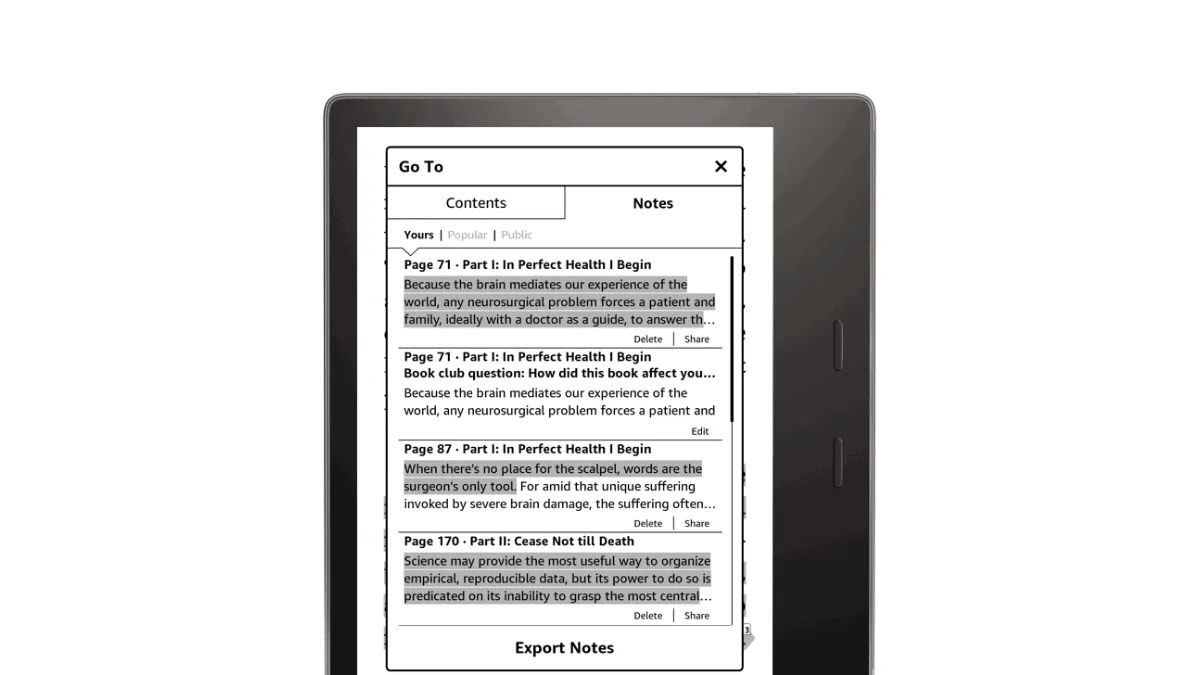
You have highlighted dozens of passages across a Kindle library. Insightful quotes from nonfiction books, beautiful sentences from novels, technical notes from programming books. The problem: all of that valuable knowledge is locked inside a Kindle, where you will never look at it again.
Getting a Kindle highlights into Notion, Obsidian, or any other note-taking system transforms them from a forgotten collection into a searchable, revisitable second brain. This guide covers every method — free, paid, automatic, and manual — so you can pick the approach that fits a workflow and budget.
Method 1: Readwise (automated, paid)
Readwise is the gold standard for highlight synchronization. Once connected, it automatically pulls every new highlight from your Kindle (and Kobo, Apple Books, Instapaper, and dozens of other sources) and pushes them into Notion, Obsidian, Roam, Logseq, Evernote, or plain Markdown files. For a complete walkthrough of the service, see our Readwise guide.
Setup takes about five minutes: sign up at readwise.io, connect your Amazon account under Dashboard → Kindle, and authorize the connection. Your existing highlights will import immediately. New highlights sync automatically every few hours.
Detailed Notion Integration
Here’s the step-by-step for Notion, which is the most popular destination:
- In Readwise, go to Dashboard → Export → Notion
- Click Connect Notion and authorize Readwise to access your workspace
- Choose a destination database — Readwise can create one automatically, or you can point it at an existing database with the right properties (Title, Author, Highlights, URL, and Tags columns are required)
- Configure the export template. Readwise uses a template system that lets you control exactly how highlights appear. The default template is:
I customize mine to include the book title and chapter for context:{{highlight}} ({{location}}) {% if note %}Note: {{note}}{% endif %}**{{book_title}}** — Chapter {{chapter}} > {{highlight}} {% if note %}💭 {{note}}{% endif %} - Set the sync frequency. “On new highlights” works well — every time you finish a reading session and sync your Kindle, the new highlights appear in Notion within an hour.
- Toggle “Add page to database” ON — this creates a Notion page for each book with all its highlights nested inside, which is much more navigable than a flat list of thousands of highlights.
Detailed Obsidian Integration
Obsidian users have two paths, and which you pick depends on how you want highlights to live in your vault:
Option A: Readwise Official Plugin (recommended for most users)
- In Obsidian, go to Settings → Community Plugins → Browse and search for “Readwise Official”
- Install and enable. The plugin will prompt you for your Readwise API token (get it from readwise.io/access_token)
- Configure the sync settings:
- Sync frequency: Every hour is a good default
- Output folder: I use
Highlights/at the vault root - File naming:
{{book_title}} - {{author}}.mdkeeps things organized - Template: Customize how each highlight is formatted. My template:
# {{book_title}}
**Author:** {{author}}
**Category:** {{category}}

## Highlights
{% for highlight in highlights %}
> {{highlight.text}} *({{highlight.location}})*
{% if highlight.note %}💭 {{highlight.note}}{% endif %}

{% endfor %}
- Trigger an initial sync from the plugin settings. Every book with highlights becomes a neatly formatted Markdown file in your vault.
Option B: Manual export — Readwise also offers bulk export as Markdown, CSV, or JSON from the dashboard. Download, extract, and drop the files into your Obsidian vault. This is free (no plugin needed) but manual.
Readwise costs $7.99/month or $95.99/year. It also includes a daily review feature that resurfaces random highlights — essentially spaced repetition for reading notes, which many users find valuable for retention.
If you are a heavy reader who highlights frequently, Readwise pays for itself in time saved. If you highlight occasionally or are on a tight budget, the free methods below work well.
Method 2: Amazon Kindle Notebook (free, manual)
Every highlight you make in a Kindle book purchased from Amazon syncs to your online Kindle Notebook at read.amazon.com/notebook. This page shows all highlights and notes, organized by book. From here, you can copy passages book by book and paste them into your note-taking app.
For small volumes of highlights, this is perfectly adequate. For a library of 50 books with hundreds of highlights, it is tedious. But it costs nothing and requires no extra software.
Pro tips for manual export: Use the browser “Select All” (Cmd+A / Ctrl+A) to grab all highlights from one book at once, paste into a plain text editor first to strip formatting, then clean up before moving to Notion or Obsidian. Some readers keep a monthly or quarterly schedule to batch-process their highlights so it doesn’t pile up.
Method 3: Calibre with the Annotations plugin (free, USB)
If you use Calibre to manage your ebook library, the Annotations plugin can extract highlights from your Kindle over USB. Install it from Calibre → Preferences → Plugins → Get new plugins → search for “Annotations”. Connect your Kindle via USB, select the book in Calibre, and run the plugin. It pulls out all highlights and exports them as text or Markdown.
This method only works for books that are physically on your Kindle and readable by Calibre. It does not work for books with strong DRM unless you have already removed it. But for DRM-free and sideloaded books, it’s an excellent free option.
Method 4: My Clippings.txt (free, works with all devices)
Every Kindle maintains a file called My Clippings.txt in the documents/ folder, accessible via USB. This plain text file contains every highlight, note, and bookmark you’ve ever made on that device — including highlights from sideloaded books and PDFs that never sync to Amazon’s cloud.
The downside: the format is raw and repetitive. Each entry looks like this:
==========
The Book Title (Author Name)
- Your Highlight on page 42 | Location 620-625 | Added on Tuesday, 3 June 2026 21:15:43

This is the highlighted text, which might span
multiple lines if it's a long passage.
==========
Parsing this manually is painful if you have hundreds of highlights. The open-source tool Clippings Fere converts My Clippings.txt into clean Markdown with one command — see our Clippings Fere guide for setup instructions. A simpler option: drag your My Clippings.txt into our free browser-based tool for instant conversion without installing anything.
Method 5: Kindle Highlights to Obsidian via GitHub (free, automated for tech-savvy users)
For the technically inclined, there is an open-source project called kindle-highlights on GitHub that uses a headless browser to scrape your Kindle Notebook and exports the results as JSON or Markdown. You can set it up to run on a schedule using GitHub Actions, automatically pushing your latest highlights to a Git repository that Obsidian watches as a vault.
This approach requires some comfort with the command line and Git, but once set up, it is completely free and automatic. It is the best option for power users who want control without paying a subscription.
Which method should you choose?
If you highlight more than a few times a week and value your time over $8/month: Readwise. If you highlight occasionally and do not mind a bit of manual work: Amazon Notebook copy-paste. If you already use Calibre and sideload most of your books: Calibre Annotations plugin. If you have highlights from sideloaded books or PDFs: My Clippings.txt with Clippings Fere. If you are a developer or power user who wants maximum control: kindle-highlights on GitHub Actions.
Whatever method you choose, do not let those highlights rot. The average reader highlights hundreds of passages a year and never revisits a single one. Getting them into your note-taking system is the difference between passive reading and active learning.
🛠️ Try our free Kindle Highlights Export Tool — drag and drop your
My Clippings.txtfile and instantly export all highlights as Markdown, plain text, or CSV. Nothing leaves your browser.
Frequently asked questions
Can I export Kindle highlights without paying for Readwise?
Yes. The free method is to access highlights at read.amazon.com/notebook, copy them manually, and paste them into your note app. For automated export, the Calibre plugin "Kindle Highlights" can extract highlights from a Kindle over USB. The free tier of Readwise also works for manual imports.
Do Kindle highlights sync automatically to Notion?
Not natively. Amazon does not provide a direct Kindle-to-Notion integration. You need a bridge tool like Readwise (paid, automated) or a manual workflow using Amazons Kindle Notebook page and copy-paste.
Why are some of my Kindle highlights missing?
Highlights only sync if the book was purchased from Amazon and Whispersync is enabled. Sideloaded books and PDFs do not sync highlights to the cloud. Also, some publishers disable highlighting on certain titles — if the highlight option is greyed out, the publisher has restricted it.