
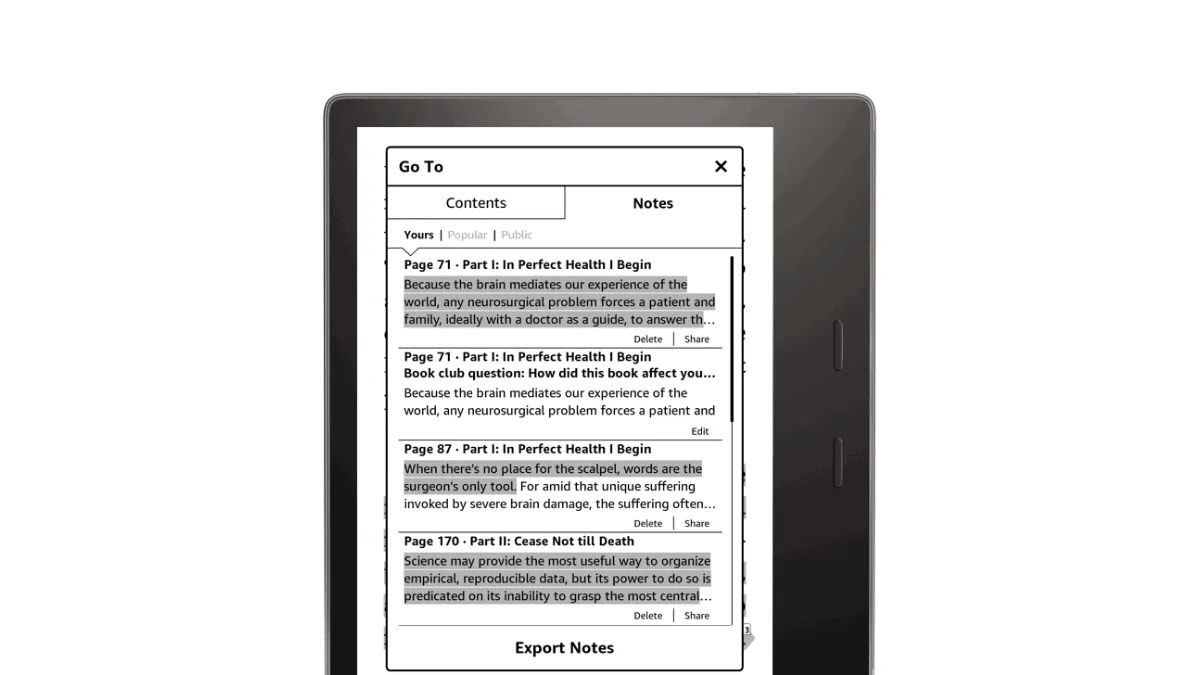
I highlight a lot. Hundreds of passages per book, sometimes. For years, those highlights just sat on my Kindle — a graveyard of yellow lines I never revisited. Getting them out of the device and into a system I actually use changed everything. Here’s how, from simplest to most powerful.
Method 1: The My Clippings file (direct, messy)
Every Kindle keeps a file called My Clippings.txt in the documents folder. Connect via USB, and it’s right there. It’s a flat text file where every highlight and note gets appended as you make it, formatted like:
Book Title (Author Name)
- Your Highlight on page 42 | Location 612-615 | Added on Monday, 15 July 2026 9:14:23 PM

The highlighted passage text here.
==========
The problems: no deduplication (highlight the same sentence twice, it appears twice), only location numbers (useless without the book open), and no chapter or section context. It’s a raw dump. For casual readers who highlight a few lines per book, it’s fine. For heavy annotators, it gets unwieldy fast.
If you’re comfortable with scripting, a Python script or a tool like Kindle Highlights can parse the clippings file into structured JSON or Markdown.
Method 2: Email export (clean, limited)
From a Kindle, open a book, tap the top of the screen, hit the notebook icon, then Export Notes. Amazon emails you a PDF and a CSV of that book’s highlights and notes. The formatting is clean, chapter-aware, and includes the full passage text with your annotations inline.
The catch: Amazon limits how much you can export at once. On longer books with heavy annotation, you’ll hit the cap — the export fails silently or truncates mid-file. For most books it works fine, but if you’re the type who highlights 200+ passages in a dense nonfiction book, you’ll need a different approach.
Method 3: Readwise (automated, paid)
Readwise is the gold standard. Connect your Amazon account once, and it auto-syncs every highlight — including sideloaded books sent via Send to Kindle — into a searchable library. From there, Readwise exports to Notion, Obsidian, Roam, Notion, Logseq, and Evernote. The killer feature is the daily review: Readwise surfaces 5-10 random highlights each day for spaced repetition, so you actually remember what you read instead of forgetting it six months later.
It’s $7.99/month (or $95.88/year), which stings if you’re not a heavy highlight user. But if annotating is part of reading workflow, it pays for itself in time saved. For a deeper look at getting the most out of Readwise, see our Readwise setup guide.
Method 4: Clippings.io (bulk export, web-based)
Clippings.io is a web tool that reads your My Clippings.txt file and lets you export all highlights to a single organized file — CSV, JSON, Excel, or directly to Evernote and Notion. It handles deduplication, groups by book, and preserves metadata. Free for basic exports; $2.49/month for direct cloud integrations. For an alternative approach to processing the My Clippings file, check out our Clippings Fere guide.
Method 5: Bookcision (Mac-only, book-by-book)
Bookcision is a free Mac app that pulls highlights from the Kindle Cloud Reader web interface, book by book. It exports clean Markdown, plain text, or JSON. No import, no file parsing — it reads directly from Amazon’s cloud. The downside is it’s one book at a time, so if you want to export your entire library, it’ll take a while.
What I actually use
Readwise for automation. Every highlight from every book flows into my Obsidian vault without me touching anything. Daily review keeps the important stuff front of mind. For one-off exports (sharing a book’s notes with someone), the built-in email export is good enough. The My Clippings file is my backup of last resort — I check it quarterly to make sure nothing is getting lost.
If you’re setting up the Notion or Obsidian side of this flow, our guide to syncing Kindle highlights to Notion and Obsidian covers the full pipeline end to end.