
You highlight a passage on a Kindle. Readwise grabs it the next time you sync. Twenty minutes later, it appears in your Obsidian vault, complete with book metadata, your tags, and a spaced-repetition review card. If you’re serious about retaining what you read, Readwise is the tool that closes the loop between highlighting and actually learning.
What Readwise Does (vs Manual Export)
The alternative to Readwise is the manual workflow: plug your Kindle into a computer via USB, find the My Clippings.txt file, copy the highlights, clean up the formatting, remove duplicates, and manually paste them into your notes app. That process takes 10-15 minutes per book and produces a wall of text nobody wants to revisit. Most people do it once or twice, then stop.
Readwise automates every step. It connects to your Kindle account (or a growing list of other sources) and continuously imports highlights as you read. Each highlight arrives tagged with the book title, author, chapter, and the date you made it. The formatting is clean, the duplicates are stripped, and everything is ready to sync into your knowledge management system. The manual My Clippings.txt approach gives you raw data. Readwise gives you organized, reviewable notes that actually surface when you need them.
But Readwise connects to more than just Kindle. Here’s everything it can pull from:
- Kindle — all highlights and notes across every book in your library
- Kobo — highlights sync through the Kobo cloud, same as Kindle
- BOOX devices — highlights from the native NeoReader app (setup requires a manual export step; see below)
- Apple Books — iOS highlights via iCloud sync
- Instapaper and Pocket — article highlights flow into the same dashboard
- Twitter — bookmark threads and Readwise imports them as readable, highlightable articles
- Readwise Reader — Readwise’s own read-it-later app, which handles articles, PDFs, EPUBs, email newsletters, and YouTube transcripts
Setting Up Readwise: Kindle, Kobo, and BOOX
Kindle Setup (5 minutes)
- Sign up at readwise.io with your email.
- Go to Dashboard → Import Highlights → Amazon Kindle.
- Click “Connect Amazon Account.” You’ll be redirected to Amazon’s login page. Authorize Readwise to access your Kindle data.
- Readwise imports every highlight you’ve ever made. This initial sync takes a few minutes for large libraries.
- Going forward, new highlights appear automatically. You don’t need to do anything — just highlight as you read and the sync happens in the background.
Kobo Setup
- Go to Dashboard → Import Highlights → Kobo.
- Enter your Kobo account credentials.
- Kobo highlights sync to Readwise the same way Kindle highlights do: automatically through the cloud. No USB required.
BOOX Setup
BOOX devices don’t have a cloud highlight API that Readwise can tap into directly, so the workflow is slightly more manual:
- On your BOOX device, open the NeoReader app and navigate to a book with highlights.
- Tap the Contents icon → Annotations → Export (choose TXT or HTML format).
- Send the exported file to your computer or phone.
- In Readwise, go to Dashboard → Import Highlights → Import Files and upload the annotation file.
- Readwise parses the file and adds all highlights to your library.
For frequent BOOX users, consider using the BOOX browser to read content in Readwise Reader directly — that way highlights flow in automatically without any export step.
Pricing Tiers
Readwise has two products, and understanding the pricing is important before committing:
Readwise (Highlights) — $7.99/month or $95.88/year (about $7.99/month). This is the original highlights-syncing service. It connects to Kindle, Kobo, Apple Books, Instapaper, Pocket, and Twitter, and syncs highlights to Notion, Obsidian, Roam, Logseq, Evernote, Bear, and more. The free tier lets you import 50 highlights total — enough to try the workflow but not enough to rely on it long-term.
Readwise Reader (Read-It-Later + Highlights) — Included with the Readwise subscription at no extra cost. Reader is a full-featured reading app that handles articles, PDFs, EPUBs, email newsletters (you get a @readwise.io address), YouTube transcripts, and Twitter threads. Highlights you make in Reader flow into the same Readwise dashboard and sync to all your connected note-taking apps. It replaces Pocket, Instapaper, and — if you prefer reading in it — Kindle’s own reading experience for certain content types.
Readwise Reader Lite — A free tier of Reader alone (without the highlights syncing service). It lets you save and read articles but doesn’t connect to Kindle or sync highlights anywhere.
If you read 2-3 books a month and actually want to use your highlights — writing summaries, connecting ideas across books, reviewing old notes — the $7.99/month is one of the best productivity investments a serious reader can make. If you highlight casually and never revisit them, stick with the free Kindle highlights system built into the Kindle app.
Note-Taking App Integrations in Detail
Readwise’s main value proposition isn’t just collecting highlights — it’s putting them where you’ll actually see them.
Notion
Readwise creates a database in your Notion workspace with entries for every book and every highlight. Each highlight appears as its own database row with properties for book title, author, tags, and highlight date. You can filter, sort, and relate these entries to other Notion databases. The integration supports automatic syncing — new highlights appear within minutes without touching anything.
Obsidian
Highlights arrive as formatted Markdown files in your vault. Readwise creates one file per book, with all highlights organized under chapter headings. Each highlight includes a link back to the Readwise website and the date it was captured. The Obsidian integration is especially powerful because it turns your highlights into a linked knowledge base — you can reference a specific passage from any other note using a wikilink.
Setup: install the Readwise Official plugin from Obsidian’s community plugins directory, enter your Readwise API token, and configure the sync folder. After the initial sync, a single command pulls in new highlights.
Roam Research
Each highlight becomes a block in your Roam graph, complete with metadata attributes. This is the deepest integration available — you can connect highlights to your existing Roam pages, reference them in daily notes, and build complex query-based views of everything you’ve ever highlighted. The spaced repetition review cards also integrate directly into Roam.
Other Integrations
Logseq (highlight blocks under book pages), Evernote (notebooks with formatted notes), Bear (tagged Markdown notes), and Notion-like database sync to Markdown files. In total, Readwise integrates with over 15 destinations.
Spaced Repetition: The Daily Review
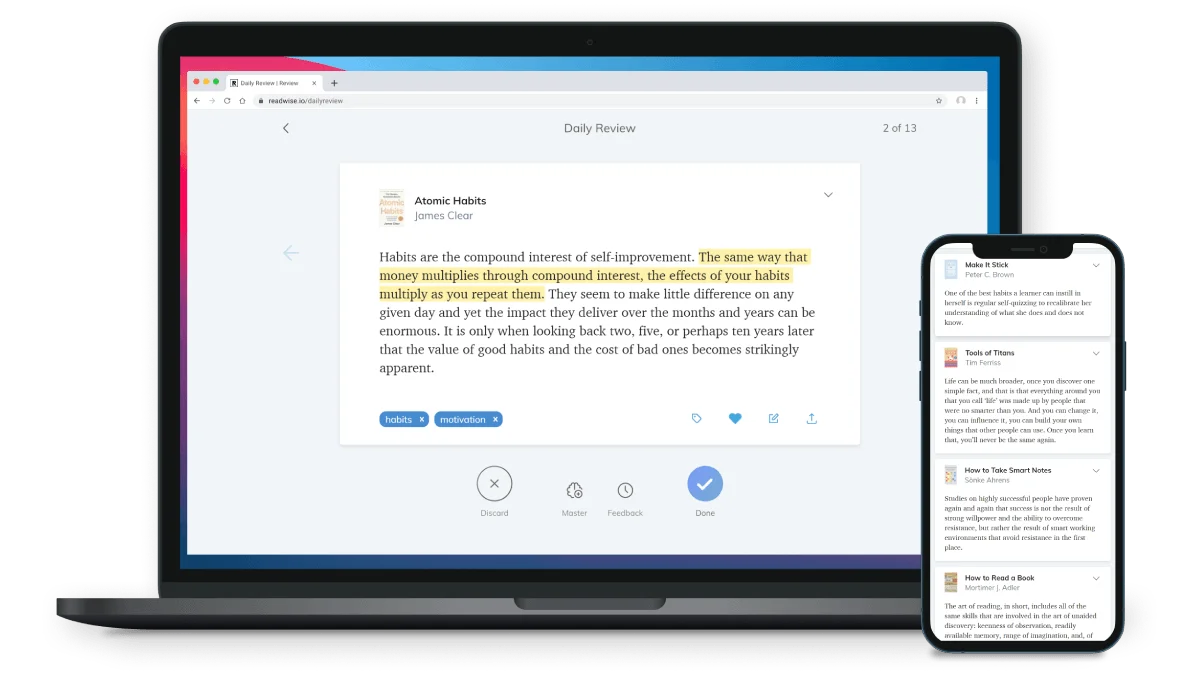
Readwise’s most undervalued feature is the Daily Review. Every day, Readwise emails you (or shows you in the app) 5 random highlights from your entire history. You see the passage, the book title, and optionally any note you attached. You can rate how well you remembered each highlight or simply dismiss it.
This is spaced repetition implemented with zero effort on your part. You don’t create flashcards. You don’t schedule review sessions. You just read a short email every morning, and over time, the highlights you care about resurface often enough to stick. It’s the same principle behind Anki and SuperMemo, but applied to book highlights rather than flashcard decks you have to build yourself.
If you want more control, Readwise lets you customize the daily review count, pause it during busy weeks, and filter by specific books or tags.
Readwise Reader: The Newer Thing
Readwise has expanded into a full reading app called Readwise Reader. It’s a read-it-later app that handles:
- Articles (RSS feeds, saved web pages)
- EPUB and PDF uploads — read non-Kindle books directly in Reader
- Email newsletters — you get a
@readwise.ioaddress; subscribe to newsletters with it and they appear in Reader as formatted articles - YouTube transcripts — paste a YouTube link and Reader pulls the transcript, making it highlightable
- Twitter threads — save a thread and Reader unrolls it into a single readable document
Everything you read and highlight in Reader flows into the same Readwise ecosystem, then out to Notion, Obsidian, or wherever you keep your knowledge. It’s a complete replacement for Pocket, Instapaper, and — for some content — Kindle. The reading experience is excellent: typography controls, dark mode, keyboard shortcuts, and offline support. If you’re already paying for Readwise, Reader is a free bonus worth switching to.
Alternatives to Readwise
Readwise is the best option for most people, but it’s not the only one.
- Clippings.io — A one-time web tool that imports your
My Clippings.txtfile and exports it as formatted Markdown or JSON. No ongoing sync. Good if you want to do a one-time export of everything and never think about it again. Free for limited use, paid tiers for bulk exports. - Klib (macOS only) — A desktop app that reads Kindle highlights from your device and manages them locally. Exports to Markdown, Evernote, and plain text. One-time purchase (~$15) rather than a subscription. No automatic cloud sync — you need to plug your Kindle in.
- Bookcision — A free browser bookmarklet that extracts highlights from your Kindle highlights page on Amazon’s website. Click the bookmarklet, get a plain text export. Simple, free, but entirely manual.
- Manual Obsidian workflow — Some users have built scripts that parse
My Clippings.txtand format highlights for Obsidian using the Templater plugin. Free if you’re technical and don’t mind maintaining your own script.
Which one is right for you? If you read regularly and want highlights to actually resurface in your workflow, Readwise’s automation makes it the clear winner. If you just want a one-time export of old highlights, Clippings.io or the manual approach work fine. If you object to subscriptions on principle, Klib is the best paid alternative.
Step-by-Step: Going from Zero to Full Sync
- Sign up at readwise.io (30-day free trial, no credit card required for the highlights service).
- Connect Kindle (or Kobo, or Apple Books) in Dashboard → Import Highlights.
- Wait for the initial sync — all your existing highlights import automatically.
- Connect your note-taking app — Obsidian users install the official plugin; Notion and Roam users authorize from the Readwise dashboard.
- Configure the daily review — set it to email you 5 highlights each morning, or use the in-app review.
- Install Readwise Reader as a browser extension and mobile app. Set it as your default read-it-later tool.
- Read and highlight as normal. Everything syncs in the background from this point forward.