
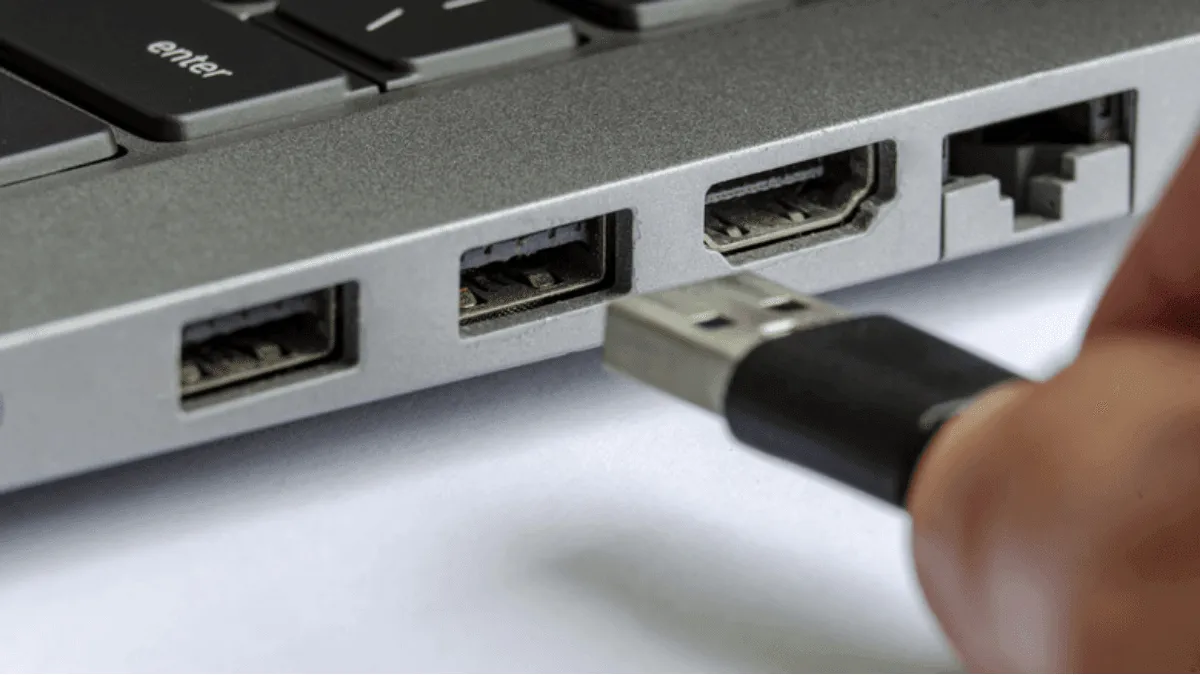
You plug an e-reader into your computer, expecting a drive to appear, and… nothing. No mount, no file explorer window, not even a charging indicator. This is one of the most common e-reader support complaints, and in the vast majority of cases, it’s the cable.
Step 1: The cable is almost always the problem
Not all USB cables carry data. Many cheap cables — especially the ones that come bundled with power banks, cheap earbuds, or LED desk lamps — are charge-only cables with no data wires. An e-reader will charge from them but won’t establish a data connection. Swap to a cable you know transfers data (the one that came with an e-reader, or any cable that works with a phone for file transfer). Also: avoid cables longer than 2 metres — signal degradation over long runs can cause intermittent recognition failures, especially on USB 2.0 ports.
Step 2: Try a different port and bypass the hub
Connect directly to a port on your computer’s motherboard — not through a USB hub, not through a monitor’s built-in USB ports, not through a keyboard passthrough. Front-panel ports on desktop PCs are often underpowered or poorly grounded. If you’re on a laptop, try all available ports. If the device appears after switching ports, your original port may be underpowered or failing.
Step 3: The device-side prompt (most people miss this)
Kindle
Older Kindles mount as USB mass storage and should appear automatically. Newer Kindles (11th-gen Paperwhite and newer) use MTP (Media Transfer Protocol). On Windows, they appear under “This PC” as a portable device, not as a drive letter. On macOS, MTP devices are not natively supported — you’ll need Android File Transfer (free from android.com) or the third-party tool OpenMTP. On Linux, install libmtp and use a file manager that supports MTP (Nautilus on GNOME, Dolphin on KDE).
Kobo
Kobo devices display a “Computer detected” prompt on screen when connected over USB. You must tap “Connect” on the Kobo’s screen or the device will only charge. It’s easy to miss this if the screen has timed out or if you’re plugging it in with the sleep cover closed. Open the cover, wake the screen, and tap “Connect.”
Boox
Boox devices run Android and require you to pull down the notification shade after plugging in. Tap the USB notification and select “File Transfer” (sometimes labelled “MTP” or “Transfer files”). If you accidentally selected “Charging only,” the computer won’t see the device. You can also enable USB debugging in Developer Options for ADB access, but that’s a separate connection mode used for sideloading apps and debugging — not for file transfer.
reMarkable
The reMarkable enables a web-based file transfer interface over USB at http://10.11.99.1 when connected. It does not mount as a drive. Open a browser and navigate to that address. If the interface doesn’t load, check that the reMarkable’s SSH server is enabled (Settings → General → Help → Copyrights and licenses, then tap the copyright text rapidly to reveal the developer menu, then toggle on USB web interface).
PocketBook
PocketBook devices usually mount automatically as USB mass storage, but you may need to select “PC Link” or “Connect to PC” from the pop-up that appears when plugging in. If the pop-up doesn’t appear, go to Settings → Connectivity → USB Mode and set it to “Ask when connected” or “PC Link.”
Step 4: Windows driver issues
On Windows, open Device Manager (right-click Start → Device Manager) and look under “Portable Devices,” “Disk drives,” and “Universal Serial Bus controllers.” If you see a device with a yellow exclamation mark, right-click it and select “Update driver” → “Browse my computer for drivers” → “Let me pick from a list.” For Kindle MTP issues, select “MTP USB Device.” For Kobo and PocketBook mass-storage issues, select “USB Mass Storage Device.” If the device appears under “Other devices” as “Unknown device,” uninstall it, unplug the e-reader, reboot, and reconnect.
Step 5: The nuclear options
If all else fails and you urgently need to transfer files:
- Wi-Fi transfer: Kindle supports Send to Kindle via email or the desktop app. Kobo supports Dropbox on most modern models (Settings → Accounts → Dropbox). Boox has built-in LAN transfer (on-device app “BooxDrop”). PocketBook supports email-to-device via PocketBook Cloud.
- SD card: If an e-reader has a microSD slot (many PocketBooks, some older Kobos, Boox devices), remove the card, load files directly on your computer with a card reader, and reinsert.
- adb over USB (Boox only): Enable USB debugging in Developer Options, install ADB on your computer, and run
adb devicesto confirm the connection. Useadb push /path/to/book.epub /sdcard/Books/to sideload without MTP. - SSH / SCP (reMarkable only): If the web interface fails, enable SSH from the developer menu and use
scp document.pdf [email protected]:/home/root/.local/share/remarkable/xochitl/to transfer files directly.