
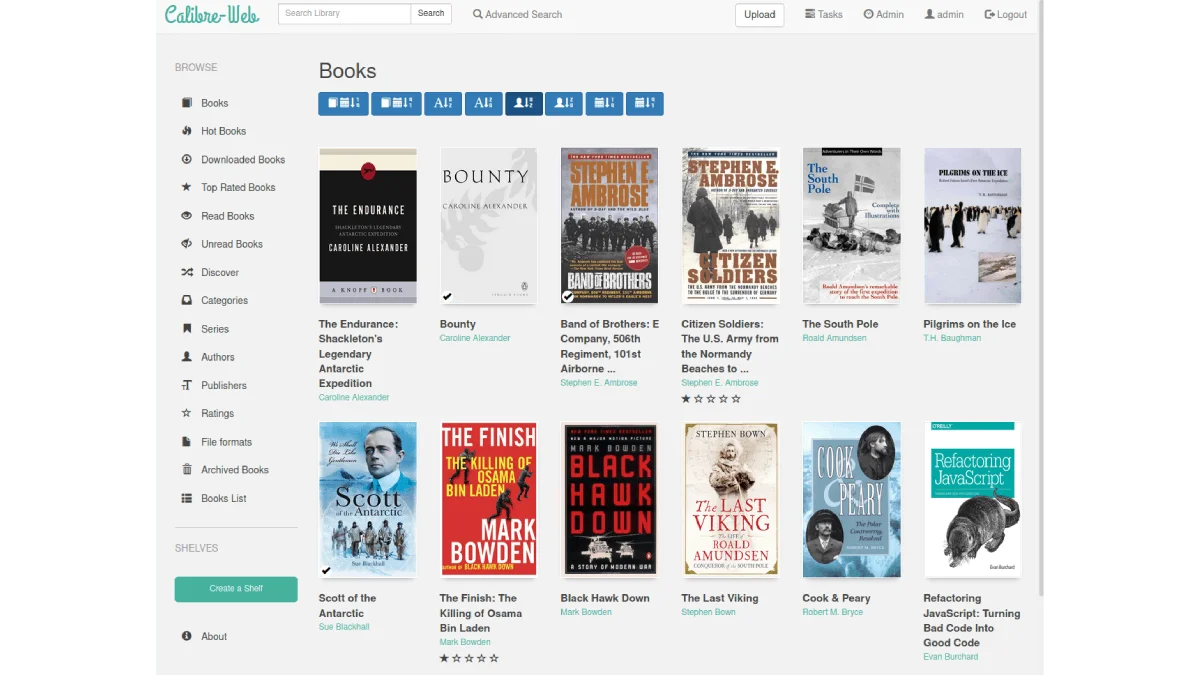
Calibre is great on your desktop. But what if you could browse your entire ebook library from your phone, search across all books, and send any title to a Kindle — without touching your computer? Calibre-Web makes your Calibre library available anywhere, through a clean web interface that looks and feels like a proper ebook store.
I have been running Calibre-Web on a home server for over two years, and it has genuinely changed how I interact with my ebook collection. No more USB cables, no more syncing folders, no more emailing files to myself. Every book I own is available from any browser, on any device, at any time. Here is how to set it up and what you get.
What Calibre-Web does
Calibre-Web is a Python web application that reads your existing Calibre database and presents it as a searchable, browsable library through a modern web interface. It does not replace Calibre — you still use Calibre on your desktop for heavy lifting like format conversion, metadata editing, and plugin management. Calibre-Web sits on top of that database and gives you read-only (or optionally read-write) access from anywhere.
Key features:
- Browse by author, series, publisher, tag, or custom shelves — the same organizational structure you set up in Calibre, presented with cover thumbnails and sortable lists
- Full-text search across titles, authors, descriptions, and even custom metadata columns. Way faster than scrolling through Calibre’s grid view
- Send to Kindle — email any book in your library directly to your Kindle device or app, complete with automatic format conversion handled by Amazon’s servers
- Download in any format — EPUB, MOBI, AZW3, PDF, and whatever other formats you have stored in Calibre, available as one-click downloads
- OPDS feed — the open standard for ebook distribution. Any OPDS-compatible reader app (Marvin, KyBook, MapleRead, KOReader) can connect to your Calibre-Web server and download books directly, no browser needed
- Multi-user support with per-user permissions — share your library with family members, each with their own reading progress tracked independently
- Reading stats and progress tracking — see how many books each user has finished, how many pages they have read, and their current position in ongoing books
- Book covers and full metadata — everything from your Calibre library, including custom columns, ratings, and series information, preserved and displayed
The interface supports dark mode, works responsively on mobile browsers, and includes a built-in ebook reader for reading directly in the browser — though the reader is more of a convenience feature than a primary reading experience.
Calibre-Web vs Calibre Content Server vs Calibre desktop
Calibre comes with a built-in Content Server that also makes your library accessible over the network. If that already exists, why install Calibre-Web? The difference is the experience.
| Calibre desktop | Built-in Content Server | Calibre-Web | |
|---|---|---|---|
| Interface | Full-featured desktop app | Basic HTML, late-2000s web design | Modern, responsive web UI with cover grids |
| Search | Powerful | Basic keyword search | Full-text with filters, sorts, and instant results |
| Send to Kindle | Via Calibre’s email feature | No | Yes, integrated into the book detail page |
| Multi-user | Single-user only | Single-user only | Yes, with per-user shelves and progress |
| OPDS | No | No | Yes, full OPDS 1.2 support |
| In-browser reader | No | No | Yes, reads EPUB files directly |
| Reading stats | No | No | Tracks finished books, pages read, time spent |
| Mobile-friendly | Desktop only | Barely usable on mobile | Fully responsive, works well on phones |
| Resource usage | Heavy (full Calibre running) | Light | Very light — no GUI, minimal CPU |
The Content Server works — you can browse and download books from it. But using it on a phone feels like browsing a website from 2005, and there are no user accounts, no reading stats, and no Send to Kindle integration. Calibre-Web fills every one of those gaps.
That said, Calibre-Web has a trade-off: it does not handle library edits as gracefully as the desktop app. Metadata changes made through Calibre-Web are possible if you enable the feature, but they can occasionally conflict with changes made in the desktop Calibre. My recommendation is to use Calibre-Web for browsing, searching, and downloading, and keep Calibre desktop for all editing work.
What you need to run Calibre-Web
Calibre-Web is lightweight enough to run on a Raspberry Pi, an old laptop, a home NAS, or a cheap cloud VPS. The absolute minimum:
- A computer that stays on (or at least runs when you want access). A Raspberry Pi 4 with 2 GB of RAM handles Calibre-Web for a 5,000-book library without breaking a sweat. The CPU spikes briefly during initial library scanning and search indexing, then idles near zero.
- Your Calibre library folder, accessible to the server. This can be on the same machine, mounted over the network via NFS or SMB, or synced from your desktop using something like Syncthing.
- Docker (recommended) or Python 3.8+ with pip.
A quick note on library location: Calibre-Web needs read access to the metadata.db file at the root of your Calibre library and read access to all the author subfolders that contain the actual book files. If your Calibre library lives on your desktop, the simplest setup is to copy it to the server periodically, or set up a one-way sync. Do not point Calibre-Web at a library that Calibre desktop is actively modifying at the same time — the database can get corrupted if two processes write to it simultaneously.
Installation: Docker (the easy way)
The LinuxServer.io Docker image is the most popular and well-maintained way to run Calibre-Web. It handles all the Python dependency headaches automatically and restarts cleanly after power outages.
docker run -d \
  --name calibre-web \
  -p 8083:8083 \
  -v /path/to/your/calibre/library:/books \
  -v /path/to/config:/config \
  --restart unless-stopped \
  lscr.io/linuxserver/calibre-web:latest
What each flag does:
-druns the container in the background as a daemon--name calibre-webgives it a memorable name for docker commands-p 8083:8083maps port 8083 on your host to port 8083 in the container. Change the first number if port 8083 is already in use-v /path/to/.../:/booksmounts your Calibre library directory into the container at/books. This is the only required volume-v /path/to/config:/configstores Calibre-Web’s configuration (user accounts, settings, the app database) outside the container so it survives updates--restart unless-stoppedensures Calibre-Web starts automatically after a server reboot
After the container starts, open http://your-server-ip:8083 in a browser. The first screen will ask you to point Calibre-Web at your library — enter /books (the path inside the container where your library is mounted). It then scans the database and populates the interface.
If you use Docker Compose, the equivalent docker-compose.yml:
services:
  calibre-web:
    image: lscr.io/linuxserver/calibre-web:latest
    container_name: calibre-web
    ports:
      - "8083:8083"
    volumes:
      - /path/to/calibre/library:/books
      - /path/to/config:/config
    restart: unless-stopped
Installation: pip (for non-Docker setups)
If you prefer to run Calibre-Web directly on a Linux server without Docker, the pip install is straightforward:
# Install system dependencies on Ubuntu/Debian
sudo apt install python3 python3-pip imagemagick

# Install Calibre-Web
pip install calibreweb

# Run it
cps
On first run, Calibre-Web creates a default configuration and launches on port 8083. You can change the port with the -p flag: cps -p 9090.
For production use, you will want to set up a systemd service so Calibre-Web starts automatically:
[Unit]
Description=Calibre-Web
After=network.target

[Service]
Type=simple
User=calibreweb
ExecStart=/usr/local/bin/cps
Restart=on-failure

[Install]
WantedBy=multi-user.target
Save this as /etc/systemd/system/calibre-web.service, then run sudo systemctl enable --now calibre-web.
NAS deployment
Calibre-Web runs well on Synology and QNAP NAS devices. Both platforms support Docker through their app stores (Synology’s Container Manager, QNAP’s Container Station), and the Docker instructions above work identically.
On a Synology NAS, the steps are:
- Install Container Manager from the Package Center
- Open Container Manager → Registry → search for
linuxserver/calibre-web→ download the image - Go to Container → Create → select the downloaded image
- Under Port Settings, map local port 8083 to container port 8083
- Under Volume Settings, add two volume mounts: your Calibre library folder mapped to
/books, and a config folder (create one in a shared folder) mapped to/config - Launch the container and visit
http://your-nas-ip:8083
The same pattern works for TrueNAS, Unraid, and OpenMediaVault — anywhere Docker runs, Calibre-Web runs.
Kindle email delivery setup
One of Calibre-Web’s best features is the ability to send books directly to your Kindle via email. Here is how to set it up:
- Go to Admin → Email Settings
- Enter the SMTP server details for your email provider. For Gmail, use
smtp.gmail.comon port 587 with TLS enabled. You will need to create an app-specific password in your Google account settings — Gmail no longer allows regular password authentication for third-party apps - Set the “From” email address — this must match the SMTP credentials
- Go to Admin → Basic Configuration → E-Book converter settings and set the allowed formats for email delivery. Kindle’s email service accepts EPUB, MOBI, and PDF, and Amazon converts EPUBs to KFX automatically
- In your Amazon account, go to Manage Your Content and Devices → Preferences → Personal Document Settings and add the “From” email address to your approved sender list
After setup, every book detail page in Calibre-Web will show a “Send to Kindle” button. Click it, enter your Kindle’s email address (find it in your Amazon device settings), and the book arrives wirelessly within a few minutes.
Security and reverse proxy
If you plan to expose Calibre-Web to the internet — accessing your library from outside your home network — you need to think about security. Calibre-Web has a login system and supports multiple user accounts, but running any web application on the open internet without HTTPS is asking for trouble.
The standard approach is to put Calibre-Web behind a reverse proxy that handles HTTPS termination. Nginx and Caddy are the two most common choices. Here is a minimal Nginx configuration:
server {
    listen 443 ssl;
    server_name books.yourdomain.com;

    ssl_certificate /etc/ssl/certs/yourdomain.pem;
    ssl_certificate_key /etc/ssl/private/yourdomain.key;

    location / {
        proxy_pass http://127.0.0.1:8083;
        proxy_set_header Host $host;
        proxy_set_header X-Real-IP $remote_addr;
        proxy_set_header X-Forwarded-For $proxy_add_x_forwarded_for;
        proxy_set_header X-Forwarded-Proto $scheme;
    }
}
With Caddy, it is even simpler because Caddy handles SSL certificates automatically via Let’s Encrypt:
books.yourdomain.com {
    reverse_proxy localhost:8083
}
Additional security measures worth considering:
- Enable Calibre-Web’s built-in login and disable anonymous browsing in the admin settings. Require authentication for every page
- Limit user permissions — create read-only accounts for family members who only need to browse and download, and keep admin access for yourself
- Use fail2ban to block brute-force login attempts. Calibre-Web logs failed logins, and fail2ban can monitor those logs
- Keep Calibre-Web updated. The LinuxServer.io Docker image gets regular updates. Check the GitHub releases page periodically
- Do not expose the Calibre library folder directly over the network. Calibre-Web should be the only way to access the books
Mobile access and OPDS
On mobile, Calibre-Web works directly in the browser — the interface is fully responsive and the cover grid adapts to phone screen widths cleanly. But the OPDS feed is where mobile access really shines.
OPDS (Open Publication Distribution System) is a standard that lets ebook reader apps connect to a remote library and download books directly. To use it with Calibre-Web:
- Enable the OPDS feed in Admin → Feature Configuration → Enable OPDS
- The feed URL will be
http://your-server:8083/opds - In your reader app (Marvin on iOS, KOReader on e-readers, Moon+ Reader on Android, KyBook), add a new OPDS catalog and enter that URL
- Enter your Calibre-Web login credentials when prompted
Once connected, you can browse your entire library from within your reading app, download any book with a tap, and start reading immediately. No browser involved. This is the closest thing to having a personal Kindle Store stocked exclusively with books you already own.
KOReader users get an extra benefit: KOReader’s Calibre wireless sync integrates with Calibre-Web’s OPDS feed, letting you browse and download books on a Kobo or jailbroken Kindle over Wi-Fi without a computer or cable anywhere in the process.
Troubleshooting
| Problem | Likely cause | Solution |
|---|---|---|
| Calibre-Web starts but shows no books | Library path is wrong or metadata.db is not readable | Check that the /books mount in Docker points to the folder containing metadata.db. The path should be the root of your Calibre library, not a subfolder |
| “Database disk image is malformed” | The Calibre database was corrupted by simultaneous access | Stop Calibre desktop, point Calibre-Web at a copy of the library, or set up a one-way sync so only one process writes to the database |
| Send to Kindle fails with authentication error | SMTP settings are wrong or the email provider blocks app logins | For Gmail, use an app-specific password. For other providers, check if they require app passwords or allow less secure apps |
| Covers don’t load on mobile | The browser is caching broken image references | Clear the browser cache, or run Calibre-Web’s “Update metadata from Calibre” option in the admin panel to regenerate cover thumbnails |
| OPDS feed does not work in a reader app | Authentication is required but not supported by the app | Some reader apps struggle with OPDS authentication. Try creating a user account in Calibre-Web with a simple username and password, or temporarily allow anonymous OPDS access for testing |
| Docker container won’t start | Port conflict or volume mount permission issue | Check if port 8083 is already in use (sudo lsof -i :8083). Ensure the mounted folders have the correct ownership — LinuxServer.io images run as user 1000:1000 by default |
Calibre-Web turns your ebook collection from a folder on a hard drive into a proper self-hosted service — searchable, shareable, accessible from anywhere. If you already use Calibre, it is the single biggest upgrade you can make to how you interact with your library. And unlike most self-hosted projects, it actually looks good while doing it.