
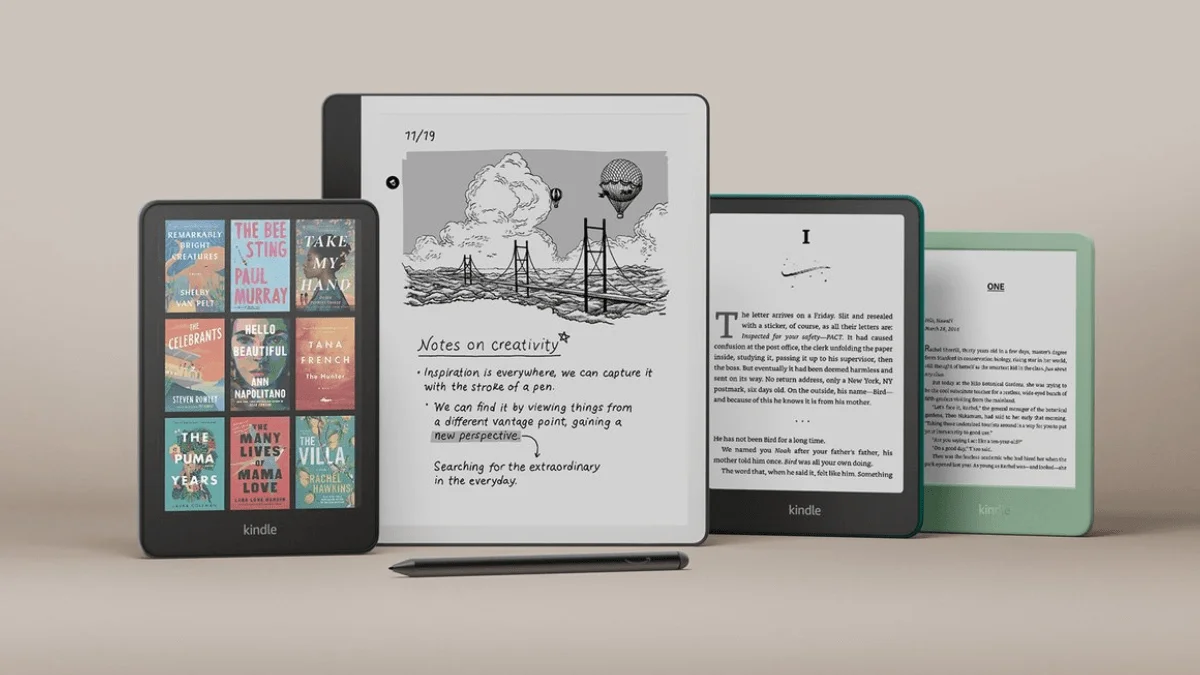
The default Kindle screensaver is either an ad for a book you don’t want, or a generic pencil-and-typewriter illustration you’ve seen 500 times. Custom screensavers make a Kindle feel like yours. Here’s how to set them up.
Method 1: Remove ads and use book covers (no jailbreak, costs $20)
The easiest legal method. Pay Amazon $20 to remove Special Offers (ads) from a Kindle, and enable the “Display Cover” feature that shows your current book’s cover as the screensaver.
- Go to amazon.com/myk
- Click Devices → select a Kindle
- Next to “Special Offers,” click Remove offers Pay $20. The ads disappear within 24 hours.
Tip: Many users report that contacting Amazon Customer Support and politely asking them to remove the ads results in them doing it for free. Worth a 5-minute chat attempt before paying. 5. On a Kindle: Settings → Device Options → Display Cover → On
Now a screensaver is whatever book you’re reading. It’s not full customization, but it’s zero-effort and permanent.
Method 2: The “book cover” trick (no jailbreak, free)
If you don’t want to pay the $20, here’s the workaround:
- Create a “book” that’s just the image you want as a screensaver
- Use Calibre to convert the image to an EPUB
- Send it to a Kindle via Send to Kindle
- Before locking the screen, open this “book” — it shows as the cover
For best results: E-ink screens rely on contrast. Dark blacks and bright whites look crisp; muddy greys disappear. Use high-contrast images — avoid photos with lots of midtones. The ideal resolution for a Kindle Paperwhite is 1236×1648 pixels; for Kindle Basic 2024, use 1072×1448. Lower-resolution images will look pixelated when scaled up on the lock screen.
Note: Kindle can only display the cover of the active book. You can’t have a rotating slideshow without jailbreak. To change the screensaver, you simply open a different “dummy book.” The good news: once the image is on screen, E Ink consumes zero power — it can sit there for weeks without draining your battery.
For one-off custom images (like a family photo or a motivational quote), this works. For a rotating gallery, it’s tedious. For that, you need Method 3.
Method 3: Full custom screensaver gallery (requires jailbreak)
With a jailbroken Kindle, you can install the Screensavers Hack that replaces all screensavers with a images.
Requirements:
- Jailbroken Kindle — see our WinterBreak 2026 jailbreak guide for the latest method, or the Sanctuary guide for older firmware
- KUAL and KOReader setup (Kindle Unified Application Launcher) installed
- Python installed on the Kindle
Setup:
- Download the “Screensavers Hack” package from the MobileRead forum
- Copy it to a Kindle’s
extensionsfolder - Create a
screensaversfolder in the Kindle root directory - Add your images — PNG format, grayscale, sized to a Kindle’s resolution:
- Paperwhite 5/6: 1236×1648
- Kindle Basic 2024: 1072×1448
- Kindle Scribe: 1860×2480
- Launch KUAL → Screensavers Hack → Update screensavers
- Your images now cycle as screensavers
The hack includes options for random ordering, timed rotation, and overlay text (like “If found, contact…”).
Method 4: KOReader’s built-in screensaver (no jailbreak on Kobo, jailbreak needed on Kindle)
KOReader has a built-in screensaver feature that shows the current book cover, a random image from a folder, or your last-read page. On Kobo, KOReader installs without jailbreak (via NickelMenu). On Kindle, you need a jailbreak.
Setup on Kobo (no jailbreak):
- Install KOReader via the one-click installer
- Launch KOReader → Settings → Screen → Screensaver
- Choose: Book cover, random image from folder, or “sleep message”
Which method should you use?
- Want zero hassle: Pay $20 to remove ads, enable book covers. Done.
- Want free book covers: Use Method 2 (the fake book trick).
- Want full control: Jailbreak + Screensavers Hack. 30 minutes of setup, then set-and-forget.
- On Kobo: Use KOReader’s built-in screensaver. No jailbreak needed.
Related
- Kindle jailbreak with WinterBreak 2026 — latest jailbreak method for current firmware
- KUAL and KOReader setup guide — install the essential jailbreak apps
- Kindle tips and tricks — more ways to get the most from your Kindle