
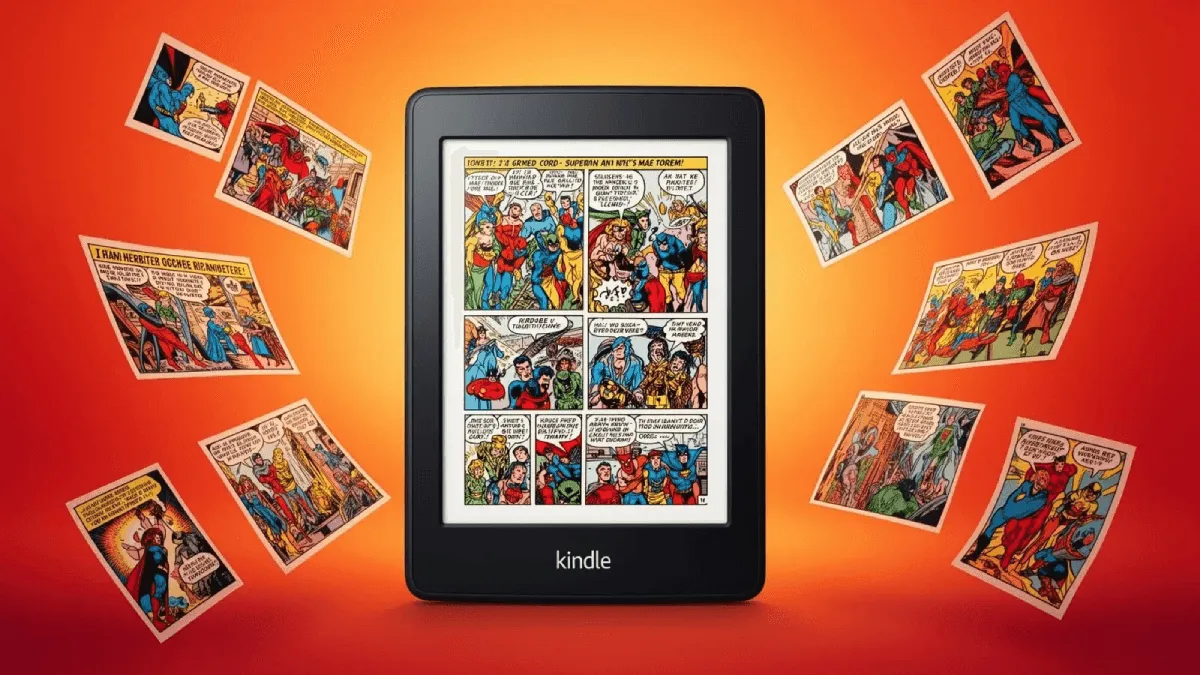
Kindle Comic Converter (KCC) is the best tool for reading comics on e-readers. It optimizes images for e-ink screens and supports panel-by-panel reading.
What is KCC?
KCC converts comic archives (CBR, CBZ, CB7) and image folders into e-reader-friendly EPUB or MOBI files. Need a broader overview of comic conversion? See our CBR/CBZ to EPUB guide. It’s specifically designed for e-ink:
macOS
brew install --cask kindle-comic-converterWindows
winget install KindleComicConverter.KindleComicConverterLinux
# Download from https://github.com/ciromattia/kcc/releases- Optimizes images for grayscale e-ink (Kindle/Kobo)
- Panel splitting — auto-detects and splits comic panels
- Margin cropping — removes white borders
- Color to grayscale — perfect conversion for non-color devices
- Batch processing — convert entire collections
Download
| Platform | Download |
|---|---|
| Windows | GitHub Releases |
| macOS | GitHub Releases |
| Linux | GitHub Releases |
Also available via web interface at kcc.iosphe.re
Basic Usage
- Open KCC
- Add Files — select CBR, CBZ, or image folders
- Output Format — choose EPUB (recommended) or MOBI
- Device — select an e-reader model
- Options — enable panel splitting and margin cropping
- Click Convert
Best Settings by Device
Kindle Paperwhite
| Setting | Value |
|---|---|
| Output format | EPUB (Send-to-Kindle) or MOBI |
| Device profile | Kindle Paperwhite |
| Resolution | 1072×1448 |
| Grayscale | ✅ Enable |
| Panel splitting | ✅ Enable |
| Margin crop | ✅ Enable (moderate) |
Kindle Scribe
| Setting | Value |
|---|---|
| Output format | EPUB |
| Device profile | Kindle Scribe |
| Resolution | 1404×1872 |
| Panel splitting | ⚠️ Optional (screen is large enough) |
Kobo Libra Colour
| Setting | Value |
|---|---|
| Output format | EPUB |
| Device profile | Kobo Libra |
| Color | ✅ Keep color (Libra Colour has color screen!) |
BOOX Tab Ultra
| Setting | Value |
|---|---|
| Output format | EPUB |
| Device profile | Generic 10” |
| Keep color | ✅ Yes (Android, full color support) |
Panel Splitting Explained
KCC’s panel splitting feature detects individual panels in each comic page and generates panel-by-panel reading order.
| Mode | Description | Best For |
|---|---|---|
| None | Full page view | Large screens (Scribe, Tab Ultra) |
| Auto | Automatic panel detection | Most comics |
| Manual | Custom panel borders | Complex layouts |
| Manga | Right-to-left reading | Japanese manga |
For help choosing the right device for your collection, check our best e-readers for manga and comics and the e-readers for manga comics guide.
KCC vs Other Comic Tools
| Feature | KCC | Kindle Comic Creator | Calibre |
|---|---|---|---|
| Panel splitting | ✅ Excellent | ❌ No | ❌ No |
| Grayscale optimize | ✅ Yes | ❌ No | ❌ No |
| Batch conversion | ✅ Yes | ❌ No | ⚠️ Limited |
| Output quality | ★★★★★ | ★★★ | ★★★ |
| Manga support | ✅ Right-to-left | ❌ No | ❌ No |
| Ease of use | ★★★★ | ★★★★★ | ★★★★ |
Pro Tips
- Use EPUB format — more compatible across devices than MOBI
- Enable panel splitting for 6-7” screens — essential for reading on small displays
- Disable panel splitting for 10”+ screens — full page view works better on large devices
- Test one chapter first — before converting your entire collection
- Keep original files — KCC modifies images permanently
- Use web version — kcc.iosphe.re works without installing anything
Troubleshooting
| Problem | Solution |
|---|---|
| Panels split incorrectly | Switch to Manual mode and adjust |
| File too large | Increase JPEG compression |
| Manga reads wrong direction | Enable “Manga mode” |
| Color looks bad on Kindle | Enable “Grayscale” in options |
| KCC crashes | Reduce batch size (10 chapters at a time) |
Related
- How to Convert CBR and CBZ to EPUB — alternative comic conversion workflows
- Best E-Readers for Manga & Comics in 2026 — device recommendations for comic readers
- E-Readers for Manga & Comics — setup and optimization tips
Download Kindle Comic Converter
Free and open source.