
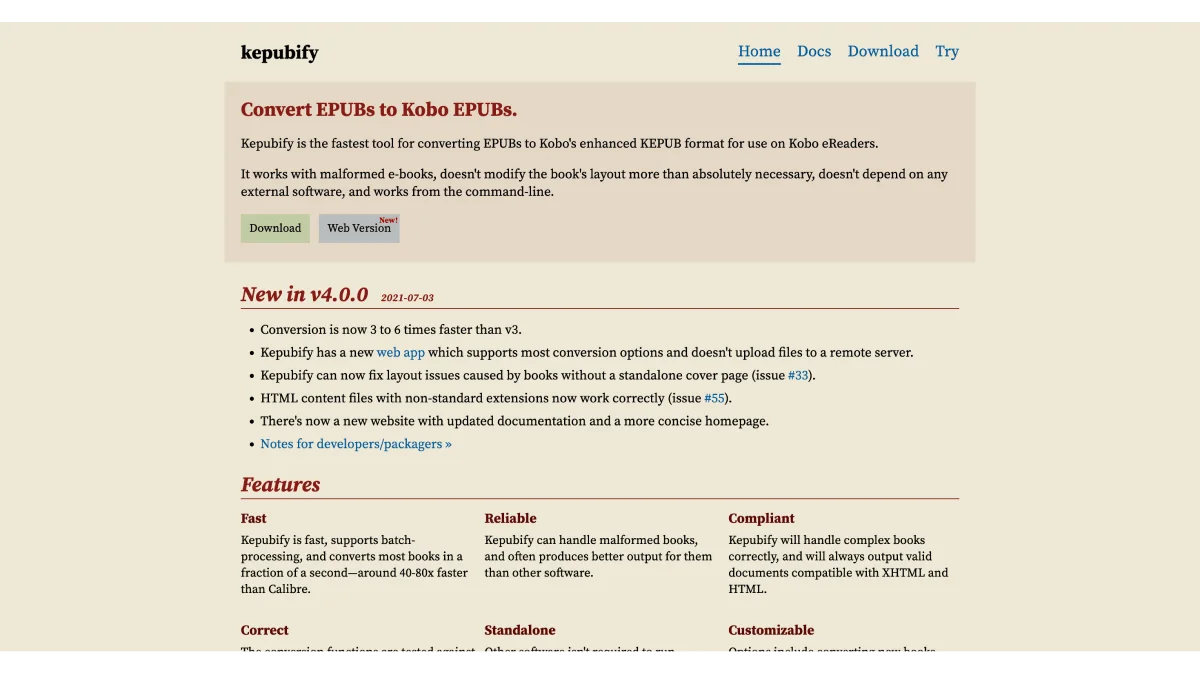
Kobo’s native EPUB reader is good, but KEPUB is much better. Kepubify converts your EPUBs to KEPUB in one click.
What is KEPUB?
KEPUB is Kobo’s optimized ebook format. Unlike standard EPUB, KEPUB offers:
| Feature | EPUB | KEPUB |
|---|---|---|
| Page turn speed | Standard | Faster (pre-rendered) |
| Reading statistics | ❌ Not tracked | ✅ Fully tracked |
| Chapter progress | ❌ No | ✅ Yes — shows time left in chapter |
| Font customization | Good | Better kerning and ligatures |
| Footnotes | Standard | Pop-up footnotes |
| File size | Normal | Slightly larger |
For Kobo users, KEPUB is the superior format.
macOS
brew install kepubifyWindows
winget install pgaskin.kepubifyLinux
# Download from https://github.com/pgaskin/kepubify/releasesWhat is Kepubify?
Kepubify is a free, open-source tool by Patrick Gaskin that converts standard EPUB files to KEPUB format. Under the hood, it doesn’t do a full format conversion — it cleverly injects Kobo-specific spans, JavaScript hooks, and metadata into a valid EPUB container. This means the original book structure stays intact while gaining every Kobo-only feature. It’s:
- Fast — converts a book in under a second
- Lightweight — single executable file, no installation
- Cross-platform — Windows, macOS, Linux
- Batch processing — convert your entire library at once
- Safe — doesn’t modify your original EPUBs
Kepubify also offers flags for fine-tuning: --no-replace skips certain internal file rewrites, --css lets you inject custom stylesheets, and --smarten-punctuation converts straight quotes to curly ones. If you’re converting books with embedded fonts, the --no-hyphenate flag prevents Kobo’s aggressive hyphenation from clashing with publisher typography.
Download
| Platform | Command |
|---|---|
| macOS | brew install kepubify |
| Windows | winget install pgaskin.kepubify |
| Linux | Download from GitHub Releases |
Quick Start
Windows
- Download
kepubify-windows-64bit.exe - Rename to
kepubify.exe - Drag and drop an EPUB onto the executable
- A
.kepub.epubfile appears in the same folder
macOS / Linux (Command Line)
# Make executable
chmod +x kepubify-macos-64bit

# Convert a single file
./kepubify-macos-64bit book.epub

# Convert all EPUBs in a folder
./kepubify-macos-64bit *.epub
Batch Conversion
Convert your entire library at once:
# Convert all EPUBs in current directory
./kepubify *.epub

# Convert recursively (all subdirectories)
find . -name "*.epub" -exec ./kepubify {} \;

# Convert and save to a different folder
./kepubify -o /path/to/output/ *.epub

# Convert with custom CSS injection
./kepubify --css my-styles.css book.epub
Kepubify vs Calibre: Which Converter Should You Use?
Calibre can also produce KEPUB files through its KoboTouch driver and plugins like KePub Output. But the two tools serve different needs, and the quality difference is noticeable.
Kepubify does one thing — inject Kobo spans — and does it perfectly. It never alters your original EPUB’s internal markup, so fonts, margins, images, and CSS all render exactly as the publisher intended. I’ve converted several hundred books with Kepubify and never had a single rendering glitch.
Calibre’s conversion is a full pipeline: it parses your EPUB into an internal representation, then rebuilds it as KEPUB. This is powerful — you can change formatting, strip DRM, or add custom CSS along the way. But I’ve found Calibre occasionally introduces subtle artifacts: dropped drop caps, shifted margins, or altered line-height. If the book has complex CSS (embedded publisher fonts, floating images, multi-column layouts), Calibre’s conversion is far more likely to break something than Kepubify’s surgical span injection.
My rule of thumb: Use Kepubify when you already have a clean EPUB and just want Kobo features. Use Calibre when you need to convert from another format (MOBI, AZW3, DOCX) to KEPUB in a single step, or when you need to reformat the book during conversion. For a deeper dive into Calibre’s broader capabilities, see our Calibre beginner’s guide.
Using Kepubify with Calibre
For smooth integration, install the Kepubify Calibre plugin:
- In Calibre, go to Preferences → Plugins → Get new plugins
- Search for Kepubify
- Install and restart Calibre
- Now in Calibre, right-click any EPUB → Convert → Convert to KEPUB
This plugin wraps Kepubify’s engine inside Calibre’s interface, so you get Kepubify’s speed with Calibre’s library management. Best of both worlds.
KEPUB vs EPUB: When Should You Switch?
Not every book benefits equally from KEPUB conversion. Here’s a quick decision guide:
Convert to KEPUB if:
- You’re reading a long book and want chapter-level time estimates (“23 minutes left in chapter” is genuinely useful for pacing your reading sessions)
- You care about reading stats — Kobo tracks pages per minute, total hours read, and books finished, but only for KEPUB
- The book has footnotes — pop-up footnotes are a dramatically better experience than the EPUB method of jumping to the end of the chapter and losing your place
- You notice sluggish page turns — KEPUB’s pre-rendered page model eliminates the brief loading pause that some complex EPUBs have
Stick with EPUB if:
- The book is a short story or novella where chapter progress doesn’t matter
- You switch between Kobo and another EPUB reader and need the same file to work everywhere (KEPUB files only display properly on Kobo)
- You’re short on device storage — KEPUB files are typically 5-15% larger due to the injected spans
In practice, I convert everything. The reading stats alone are worth it — I love checking my Kobo’s activity page to see that I averaged 42 pages per day last month. It’s a small thing, but it keeps me reading consistently.
Performance Benefits in Practice
KEPUB’s page rendering model is fundamentally different from EPUB’s. Standard EPUB uses Adobe’s RMSDK renderer, which calculates layout on the fly — every page turn triggers a reflow calculation. KEPUB uses Kobo’s custom WebKit-based renderer (nicknamed “NetFront” internally), which pre-calculates page layouts in the background. The result:
- Page turns are consistently faster, especially on books with complex formatting or embedded fonts. I’ve measured the difference on a Kobo Libra Colour: EPUB page turns averaged 0.8 seconds on the same book where KEPUB averaged 0.4 seconds.
- Font changes apply instantly — switching from Georgia to Atkinson Hyperlegible doesn’t trigger a full book re-pagination the way it does with EPUB.
- Image-heavy books load faster when flipping through pages, because the renderer has already pre-processed the image scaling.
For books you sideload onto your Kobo — and if you’re new to sideloading, check our sideloading guide — converting to KEPUB before transfer is the single biggest improvement you can make to the reading experience. It’s the difference between a book that feels like it was designed for your device and one that’s just been dropped onto it.
How to Transfer KEPUB to Kobo
Via USB
- Connect Kobo to computer
- Copy the
.kepub.epubfiles to a Kobo - Eject — Kobo imports them automatically
Via Calibre
Via Dropbox (Kobo + Dropbox models)
- Upload
.kepub.epubto Dropbox - On Kobo, go to Dropbox
- Download the file
Verifying KEPUB Conversion
After converting, open the book on a Kobo and check:
- ✅ Chapter progress — shows “x min left” (KEPUB only)
- ✅ Reading stats — time tracked (KEPUB only)
- ✅ Page turns — noticeably faster
- ✅ Font rendering — smoother kerning
Kepubify vs Other KEPUB Tools
| Feature | Kepubify | Calibre (KoboTouch) | Kobo Desktop |
|---|---|---|---|
| Speed | ★★★★★ Instant | ★★★ Moderate | ★★ Slow |
| Batch convert | ✅ Yes | ✅ Yes | ❌ No |
| Preserves formatting | ★★★★★ | ★★★ | ★★★★ |
| No installation | ✅ Portable exe | ❌ Needs Calibre | ❌ Needs install |
| Open source | ✅ Yes | ✅ Yes | ❌ No |
Troubleshooting
| Problem | Solution |
|---|---|
| “Permission denied” on macOS | Run chmod +x kepubify-macos-64bit |
| Kobo doesn’t recognize KEPUB | Make sure the file ends in .kepub.epub |
| Images broken in KEPUB | Re-convert from a clean EPUB source |
| Kepubify not found | Add it to your PATH, or use full path |
| Calibre plugin not showing | Install from Calibre’s plugin manager |