
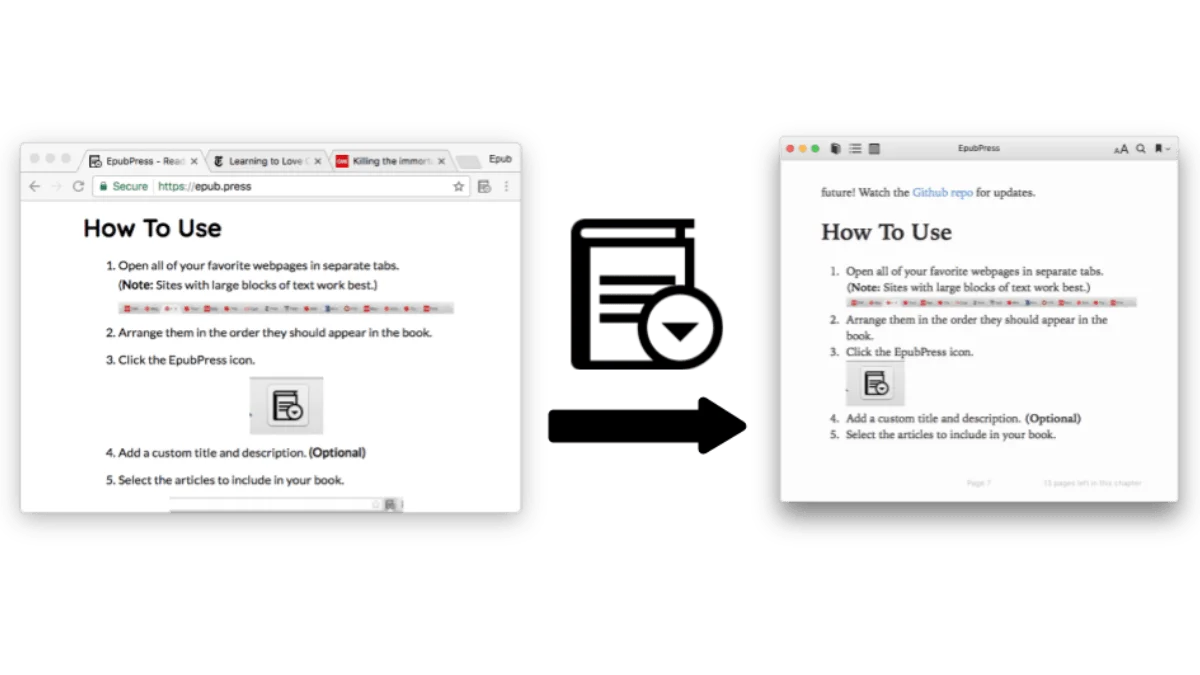
You have 12 tabs open — articles you meant to read, tutorials you wanted to save, a long-form essay someone sent you. EpubPress bundles them all into a single EPUB file in seconds. It’s a browser extension, it’s free, and it works astonishingly well.
How EpubPress works
Install the extension from the Chrome Web Store or Firefox Add-ons. Once installed:
- Open all the articles you want to include — each in its own tab
- Click the EpubPress icon in your toolbar
- Select which tabs to include (it lists all open tabs)
- Click “Download”
EpubPress grabs each page’s content, strips out ads and navigation, and assembles everything into a clean EPUB with a table of contents. Each article becomes a chapter. The whole process takes about 10 seconds for 5-10 articles.
Under the hood
EpubPress is open-source. When you click “Download,” the extension sends the URLs of your selected tabs to the EpubPress server (at epub.press). The server fetches each page, runs it through Mozilla’s Readability library — the same content extraction engine that powers Firefox’s Reader View — and extracts the main article text while discarding sidebars, ads, navigation menus, and comment sections. The cleaned content is then assembled into a properly structured EPUB file with chapter headings, a generated table of contents, and basic metadata pulled from page titles.
Because the heavy lifting happens server-side, the extension itself is lightweight. The tradeoff is that you need an internet connection when you hit the button, and EpubPress’s server has to be reachable. The project is maintained on GitHub (github.com/haroldtreen/epub-press), so if the public instance goes down, you can self-host it.
What gets captured and what gets lost
EpubPress handles standard article pages beautifully: blog posts, news articles, long-form essays, documentation pages, and tutorial content all render cleanly. Images are embedded directly into the EPUB, so they display offline. Code blocks in technical articles are preserved with their formatting. Basic text styling — bold, italic, headings, lists, and links — is included.
What does not survive: interactive elements (embeds, iframes, JavaScript-driven content), comment threads, dynamically loaded images, and anything behind a login wall. Pages that render their main content via JavaScript after page load will produce an empty chapter unless the server can access the text. If a site requires you to be logged in (like Medium’s member-only posts), EpubPress cannot authenticate and will capture only what is publicly visible.
Step-by-step setup
Chrome / Edge / Brave
- Visit the EpubPress page on the Chrome Web Store.
- Click Add to Chrome. Confirm the permissions prompt — EpubPress needs access to your open tabs to list them and read their URLs. It does not read your browser history or send data anywhere except to its own server when you click Download.
- Pin the extension icon to your toolbar for quick access. Click the puzzle piece icon in Chrome’s toolbar, find EpubPress, and click the pin icon.
- The icon is a small book. Click it to open the tab selector.
Firefox
- Visit the EpubPress page on Firefox Add-ons.
- Click Add to Firefox and confirm the permissions.
- The EpubPress icon appears in your toolbar automatically. If it does not, right-click the toolbar, choose Customize Toolbar, and drag the icon into place.
Safari
EpubPress does not currently have a Safari extension. If you use Safari as your main browser, the workaround is to install Chrome or Firefox just for EpubPress conversions — open your articles in that browser, run the extension, and close it when done. Alternatively, use Pocket’s “Send to Kindle” feature or Calibre’s news fetch as a substitute.
When to use it
EpubPress shines for:
- Research reading — collect 5-10 articles on the same topic into one ebook for focused reading
- Travel prep — save destination guides, itineraries, and tips before a trip
- Tutorial series — bundle a multi-part tutorial into one file
- Weekly reading list — save your weekend reading on Friday, read on a Kindle Saturday
The output EPUB works on any e-reader. Send it to a Kindle via Send to Kindle, sideload to Kobo, or read it on your phone.
Beyond the obvious: niche workflows
Some workflows EpubPress enables that people do not immediately think of:
- Conference or course prep. A speaker posts a list of 8 prerequisite readings. Bundle them all into one EPUB, read them on a plane without Wi-Fi, and arrive prepared.
- Recipe collection. Open 10 recipe tabs from different food blogs, bundle them, and you have a personal cookbook on your kitchen tablet. Recipes are text-heavy enough to survive the extraction process well.
- Documentation offline. Software documentation often spans dozens of pages. Bundle the key pages before a flight or a trip to a location with spotty internet. You will have the reference material you need without a data connection.
- Newsletter archive. If a newsletter publishes its archive as individual web pages, you can batch them all into one file for binge reading.
Cleaning up the output
The EPUB EpubPress produces is clean but not polished. You might want to:
- Rename chapters. EpubPress uses the page title as the chapter name, which sometimes includes site names or SEO cruft. Open the EPUB in Calibre or Sigil and edit the
toc.ncxfile to rename chapters to something readable. - Fix ordering. The chapters appear in the order of the tabs you selected, which might not be the order you want to read them in. Reorder by dragging chapters in Calibre’s TOC editor before sending to your device.
- Add a cover. EpubPress does not generate a cover image. In Calibre, right-click the book → Edit metadata → Change cover to add something that looks right on your e-reader’s home screen.
- Strip broken images. Occasionally, images that loaded in the browser do not make it into the EPUB. Open the file in Sigil to see which images are missing and either replace them or remove the broken image tags.
Comparison with alternatives
| Tool | Output | Requires installation | Offline reading | Notes |
|---|---|---|---|---|
| EpubPress | EPUB | Browser extension | Yes (EPUB file) | Best for batch conversion; free and open-source |
| Web/app | App or browser | Yes (in Pocket app) | Read-later service, not file conversion; requires account | |
| Instapaper | Web/app | App or browser | Yes (in app) | Similar to Pocket; paid tier for full-text search |
| Calibre news fetch | EPUB/MOBI | Calibre desktop app | Yes | Automated scheduled downloads; powerful but complex to configure |
| PrintFriendly | Browser bookmarklet | Yes | PDF output, not EPUB; good for single pages | |
| DotEPUB | EPUB | Browser bookmarklet | Yes | Lightweight; sometimes unreliable on complex pages |
Pocket and Instapaper are reading-list services, not conversion tools. They are great for “save this to read later on my phone,” but they do not produce a file you can sideload onto a Kindle or Kobo. Calibre’s news fetch is the closest feature match — it pulls articles from RSS feeds on a schedule and packages them as EPUBs — but it requires Calibre running on a computer and is overkill for one-off batches.
EpubPress fills the gap: you want a file, right now, from tabs you already have open, without installing anything beyond a browser extension.
Troubleshooting common problems
“No content extracted” for a page
The Readability algorithm could not identify the main content. This happens with sites that use unusual HTML structures, heavy JavaScript rendering, or pages that are mostly images. Solutions: try opening the “print version” of the article if the site provides one. Many news sites have a printer-friendly URL (usually appending ?page=print or similar) that strips the cruft before EpubPress even sees it. Alternatively, use your browser’s Reader View first to verify the content is extractable — if Firefox Reader View shows the article, EpubPress should capture it.
Extension hangs or does not respond
This is almost always a server issue. EpubPress relies on the epub.press server, which is maintained by a single developer. If the server is down, the extension will spin indefinitely. Check the GitHub repository for server status or try again later. If you rely on EpubPress heavily, consider self-hosting the server on a VPS or a Raspberry Pi — the setup is documented in the project’s README.
EPUB file is enormous
Images are embedded at full original resolution. If the articles include large photographs or illustrations, the EPUB can balloon past 50 MB. This is mostly a problem when sending to Kindle via Send to Kindle, which has a file size limit. In Calibre, use the Polish books tool to losslessly compress images, or convert the EPUB to MOBI/AZW3 to reduce size before sending to a Kindle.
Page ordering is wrong
EpubPress orders chapters by the order you selected the tabs, which is the order they appear in the tab list. To get the order right: arrange your tabs in the desired reading order before clicking the EpubPress icon, or drag-select them in order in the extension popup. If you get it wrong, reorder chapters in Calibre afterward — it takes 30 seconds.
Frequently asked questions
Is EpubPress free?
Yes, EpubPress is a free and open-source browser extension. There are no paid tiers, subscriptions, or usage limits.
Does EpubPress work offline?
EpubPress requires an internet connection when you click Create EPUB because it fetches content from open web pages. However, the resulting EPUB file can be read offline on any compatible device.
Can I use EpubPress with articles behind a paywall?
EpubPress can only capture what is publicly available in your browser. If an article requires a subscription to read, EpubPress will not be able to bypass the paywall.