
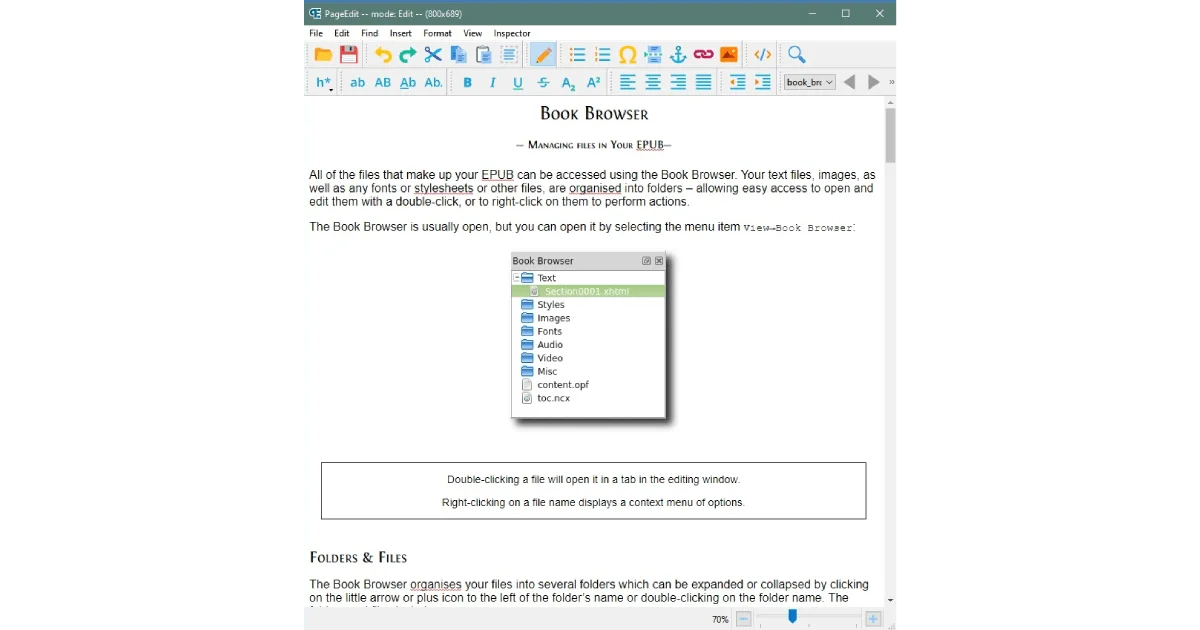
Most ePub editors feel like they were designed by people who hate you. Sigil is powerful but dense. Calibre’s editor is functional but clunky. That’s where PageEdit comes in — a lightweight, open-source ePub editor that focuses on one thing: making it easy to fix and polish an ebooks without losing your mind.
What PageEdit actually does
PageEdit is a visual ePub editor built on the same engine as Sigil. Unlike Sigil, which gives you the full code view and every possible tool, PageEdit strips things down to what most people actually need: a WYSIWYG editor for cleaning up ePub files.
macOS
brew install --cask pageeditWindows
winget install Sigil-Ebook.PageEditLinux
# Download AppImage from https://github.com/Sigil-Ebook/PageEdit/releasesIt works as a companion to Sigil — you can set Sigil to use PageEdit as its external editor, giving you the best of both worlds.
Key features:
- Visual editing with live preview
- Spelling and grammar checking
- Image insertion and resizing
- Link management
- Metadata editing
- Clean HTML output
To understand where PageEdit fits, it helps to compare it against the other major ePub editors. Sigil is the Swiss Army knife — it gives you split code view and visual preview, full CSS editing, regex search-and-replace across the entire book, and a table of contents editor. It’s the tool for structural work: generating the TOC, adding semantic markup, or doing bulk find-and-replace across all chapters. Calibre’s Editor lives inside the Calibre ecosystem and integrates tightly with Calibre’s library management, metadata downloader, and conversion pipeline. It has a solid code editor and a live preview pane, but the interface can feel busy and the preview isn’t always pixel-accurate. PageEdit occupies a narrower niche — it’s strictly a visual editor, no code view, no structural tools — and that focus is its strength. It renders pages more faithfully than Calibre’s preview, and it lets you focus entirely on how the text actually looks rather than the HTML behind it.
Step-by-step WYSIWYG editing
Here’s a concrete walkthrough of fixing up a converted ePub in PageEdit:
1. Open your ePub. Launch PageEdit and drag your .epub file onto the window, or use File → Open. PageEdit scans the book’s contents and opens the first chapter.
2. Navigate through the book. Use the navigation arrows in the toolbar to move between sections. PageEdit preserves the ePub’s internal structure, so each HTML file inside the ePub appears as its own section. If your Calibre conversion split the book at every chapter heading, each chapter will be a separate section — which is what you want.
3. Fix widowed headings. This is the most common conversion artifact: a chapter title sitting alone at the bottom of a “page” with the text starting on the next screen. In PageEdit, click just before the heading and press Enter to push it down. Or select the heading and apply the “Heading 1” or “Heading 2” style from the format dropdown. The visual preview updates instantly.
4. Clean up spacing. Conversion tools often add extra paragraph breaks or inconsistent line spacing. Highlight any text that looks off and use the indent and spacing controls in the toolbar. PageEdit applies the changes as clean CSS in the background — no inline styles, no spam.
5. Insert or resize images. Place your cursor where you want an image, then Insert → Image. PageEdit embeds the image into the ePub and lets you drag the corners to resize. It automatically generates the correct HTML and adds the image to the ePub’s manifest. For full-page illustrations, set the width to 100% in the image properties dialog.
6. Run spell check. Tools → Spellcheck scans the entire book. PageEdit uses the system spell checker, so make sure your OS has the right language dictionaries installed. This catches typos that survived your writing and conversion passes.
7. Save and verify. File → Save writes your changes back to the ePub. Then open the file in a separate ebook viewer — Kindle Previewer, Calibre’s viewer, or an actual e-reader — to confirm everything looks right. PageEdit’s preview is good, but always double-check on a real device or an authoritative simulator.
When to use PageEdit vs a code editor
PageEdit shines when you’re doing visual polish. Use it for:
- Fixing text formatting (italics, bold, headings)
- Adjusting image sizes and placement
- Correcting typos and grammar
- Tidying spacing and indentation
- Adding or editing links
Swap to Sigil or Calibre’s code editor when you need:
- Bulk find-and-replace across every chapter
- Direct CSS editing
- Adding custom HTML or semantic elements
- Restructuring the table of contents
- Splitting or merging internal files
- Validating ePub structure against the spec
A practical rule: if the fix involves selecting text and pressing a button, do it in PageEdit. If it involves writing or modifying HTML or CSS directly, open Sigil. Most projects bounce between the two — structural work in Sigil, visual polish in PageEdit, final check in Kindle Previewer.
Supported features and limitations
PageEdit covers the majority of what most ebook creators need, but it’s not everything:
What it does well:
- Bold, italic, underline, strikethrough
- Heading levels (H1–H6)
- Ordered and unordered lists with nesting
- Blockquotes and preformatted text
- Hyperlinks (internal and external)
- Image insertion with drag-to-resize
- Metadata editing (title, author, language, cover)
- Spell checking with custom dictionaries
- Dark mode for comfortable editing
What it doesn’t do:
- No code view or split-view — you can’t see or edit the HTML directly
- No table of contents editor — you can’t add, remove, or reorder TOC entries
- No CSS editor — styles are applied through the visual interface, not written manually
- No regex search — you can find text but not with pattern matching
- No ePub validation — PageEdit won’t check your ePub against the official spec
- No footnote or endnote tools — you’d need to handle those in Sigil
- No table editor — inserting and formatting tables is awkward
These aren’t oversights; they’re deliberate design choices. PageEdit is a visual editor for prose, not a complete ePub authoring environment. If your book has complex elements — tables, footnotes, sidebars, embedded media — you’ll need Sigil or manual HTML editing. For the 80% of books that are primarily text with some images, PageEdit handles everything you need.
Workflow integration with Sigil
Setting up the two-tool workflow is straightforward:
- Open Sigil and go to Edit → Preferences → General Settings
- In the “External XHTML Editor” section, browse to PageEdit’s executable
- Check “Use external XHTML editor”
- Now in Sigil, open any chapter in Book View and press F2 — PageEdit opens that chapter for visual editing
- When you save in PageEdit, the changes flow back to Sigil automatically
This setup gives you the best of both worlds. You handle the heavy lifting in Sigil — generating the TOC, setting up CSS, running validation — then jump into PageEdit with F2 whenever you need to do visual cleanup. Changes are saved back to Sigil’s ePub, so you never have to juggle separate files.
For Calibre users, the integration is less seamless but still workable. Use Calibre to manage your library and handle initial conversion. When you’re ready for visual editing, export the EPUB from Calibre, open it in PageEdit, make your changes, save, and re-import to Calibre if needed. It’s an extra step, but the quality-of-life improvement from PageEdit’s cleaner interface is worth it for long editing sessions.
Troubleshooting
| Problem | Likely cause | Solution |
|---|---|---|
| PageEdit won’t open an ePub | File is DRM-protected or corrupted | Remove DRM with Calibre’s DeDRM plugin, or validate the ePub in Sigil |
| Changes don’t save | Read-only file permissions | Check file properties; copy the ePub to a writable location |
| Spell check finds nothing | No dictionary installed | Install a dictionary for your language through your OS settings |
| Images appear blurry | Low-resolution source image | Replace with an image at least 1,200px on the longest side |
| Formatting looks different after saving | Embedded CSS conflicts with visual edits | Open in Sigil and check for conflicting CSS rules |
| PageEdit crashes on large books | Memory limitation | Split the book into smaller internal files using Sigil’s split tool |
| Links break after editing | Internal file renaming during conversion | Don’t rename internal files after conversion; fix links in Sigil |
The most common frustration with PageEdit is the lack of a code view — you can’t see what HTML is being generated. If you apply formatting and the result looks wrong, it’s usually because of conflicting CSS rules inherited from the conversion source. The fix is to open the ePub in Sigil, inspect the underlying CSS, and clean up anything that’s overriding PageEdit’s formatting.
Why PageEdit earns its place
PageEdit won’t replace Sigil or Calibre. It’s not trying to. What it does is fill a specific gap — the visual editing step that falls between structural work and final review. If you’ve ever spent an hour in Calibre’s editor squinting at the preview pane while trying to fix chapter headings, you’ll appreciate PageEdit’s singular focus on making that experience straightforward. It’s free, it installs in minutes, and it makes the most tedious part of ebook production genuinely easy. For anyone serious about making ebooks look professional, PageEdit is worth the time it takes to set up.