
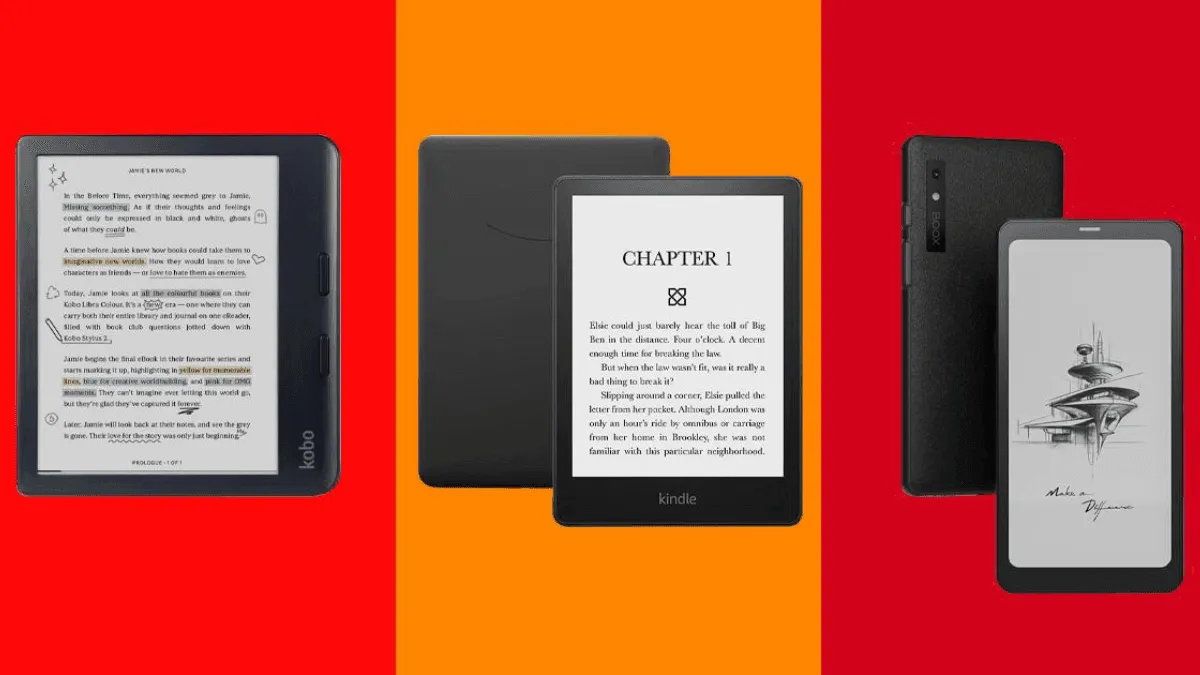
The PDF is the cockroach of file formats — no matter how many better alternatives emerge, it survives. And for academics, students, and professionals, it’s not going anywhere. But reading a letter-sized PDF on a 6-inch e-reader is an exercise in frustration: constant scrolling, zooming, and losing track of where you are on the page. Here’s what actually works.
reMarkable Paper Pro — Best for dedicated PDF reading and annotation
The reMarkable Paper Pro ($579 with Marker) is purpose-built for documents. The 11.8-inch Canvas Color display renders PDFs at near letter-size, so a full academic paper fits on screen without scrolling. The writing experience is the best in the category — the textured screen and low-latency stylus feel uncannily close to pen on paper. You can mark up PDFs directly, highlight passages, scribble margin notes, and organize everything into notebooks and folders.
The trade-off is that this is a writing and reading tablet, not an e-reader in the traditional sense. No Kindle store, no Kobo store, no OverDrive library borrowing. DRM-protected ebooks aren’t supported without stripping. It’s a specialist tool, and at $579 it’s the most expensive option on this list. But for a PhD student or professor reading and annotating dozens of papers a week, nothing else comes close to the distraction-free focus it provides.
Kindle Scribe (2024) — Best balance of PDF and ebook reading
The Kindle Scribe ($399.99 with Premium Pen) splits the difference between an academic PDF reader and a regular Kindle. The 10.2-inch 300 ppi display is sharp and glare-free, and Amazon’s PDF handling has improved significantly with the 2024 model — you can now write directly on PDFs, and the “Send to Kindle” web tool preserves formatting better than it used to. The active canvas feature lets you create expandable margins for notes alongside PDFs, which is clever for dense academic reading.
Where the Scribe wins is ecosystem. When you’re not reading papers, it’s a Kindle — full access to the Kindle Store, Goodreads integration, Whispersync across devices. That versatility matters if you’re a student who reads novels during breaks between research sessions. Battery life is excellent, and the backlight makes it usable in dorm rooms and library carrels.
Boox Tab Go 10.3 — Best for PDF reflow and Android flexibility
For technical readers who need more than static page rendering, the Boox Tab Go 10.3 ($449.99) is the most capable device on this list. It runs Android 13 with Google Play, so you can install Zotero, Mendeley, Google Scholar, or any PDF reader app you prefer. Boox’s NeoReader — the built-in reading app — has the best PDF reflow engine in the business: it intelligently reflows multi-column academic papers into single-column scrolling text, with images and figures preserved in place. For two-column journal articles, this is transformative.
The 10.3-inch 300 ppi Carta 1200 screen is crisp, the Snapdragon 665 handles large PDFs without lag, and 64GB of storage handles a full semester’s reading with room to spare. MicroSD expansion is supported. Stylus support is included, with 4096 levels of pressure sensitivity. The trade-off: the Android interface is busy, battery life spans days not weeks, and the learning curve is steeper than either the reMarkable or the Scribe.
Boox Note Air 5C — Best color option for academic reading
If reading includes charts, graphs, color-coded diagrams, or illustrated textbooks, the Boox Note Air 5C ($499.99) adds a 10.3-inch Kaleido 3 color display to the equation. The color layer renders figures, highlighted passages, and annotated charts in muted but legible color — a genuine advantage for STEM textbooks, medical diagrams, and data-heavy papers. The Android 13 platform and NeoReader PDF reflow carry over from the Tab Go, and the included stylus supports both writing and color highlighting. The color filter layer makes the screen slightly darker than the monochrome Tab Go 10.3, so you’ll run the front light higher. At $499.99, it’s a significant premium over black-and-white, but for color-dependent academic work, it’s the only E Ink option that makes sense.
PDF Device Comparison Table
| Feature | reMarkable Paper Pro | Kindle Scribe (2024) | Boox Tab Go 10.3 | Boox Note Air 5C |
|---|---|---|---|---|
| Screen size | 11.8” | 10.2” | 10.3” | 10.3” |
| Screen type | Canvas Color | Carta 1200 B&W | Carta 1200 B&W | Kaleido 3 color |
| Resolution | 216 ppi | 300 ppi | 300 ppi | 300 ppi / 150 ppi color |
| Storage | 64 GB | 16/32/64 GB | 64 GB + microSD | 64 GB + microSD |
| Stylus included | Yes (Marker) | Yes (Premium Pen) | Yes | Yes |
| Front light | Yes | Yes (35 LEDs) | Yes | Yes (with warm) |
| Weight | 525g | 433g | 420g | 430g |
| PDF reflow | No | No | Yes (NeoReader) | Yes (NeoReader) |
| Zotero integration | No (third-party) | No | Yes (native app) | Yes (native app) |
| Cloud sync | Connect ($2.99/mo) | Send to Kindle | Google Drive, Dropbox, etc. | Google Drive, Dropbox, etc. |
| Battery life | ~2 weeks | ~12 weeks | ~1 week | ~1 week |
| Price | $579 | $399.99 | $449.99 | $499.99 |
Academic Workflow: From Paper Download to Annotated Reading
Reading academic PDFs is not just about opening a file. It is a workflow: find the paper, download it, read and annotate, organize notes, and cite it later. Different devices handle different parts of this chain.
The Boox workflow is the most integrated. Install Zotero from the Play Store, and your entire reference library syncs to the device. Open a paper, annotate with the stylus, and your highlights and notes sync back to your Zotero cloud. You can also install Mendeley, Paperpile, or Google Scholar. The PDF reflow in NeoReader is genuinely useful for two-column journal articles — it extracts the reading order and presents a single scrolling column with figures preserved inline. This turns a dense PDF into something closer to a Kindle book. For a student managing hundreds of papers across courses, this is the closest thing to an all-in-one academic reading device.
The reMarkable workflow is deliberately minimal. You email PDFs to the device, or use the desktop app to drag-and-drop. Once there, the reading and annotation experience is the best in the category — the large 11.8-inch screen shows a full letter-size page at near-actual size, and marking up a PDF with the Marker feels indistinguishable from a printed copy and a pen. But the workflow ends there. There is no integration with reference managers. Exporting annotated PDFs back to your computer is easy (they sync as flattened PDFs with your markup baked in), but getting them into a citation manager requires manual steps. For a researcher who values focus above integration — who wants to read and think without notifications — the reMarkable is a sanctuary. For someone who needs their annotated PDFs to flow directly into a Zotero library with searchable highlights, it is a friction point.
The Kindle Scribe workflow uses Amazon’s Send to Kindle pipeline. You email PDFs to your Kindle address, or use the web uploader. They appear in your library alongside your books. Annotations are stored as Kindle notes and sync to the Kindle app on your phone and computer. The writing feels good enough for margin notes, and the active canvas feature lets you create expandable note areas alongside PDFs — useful for writing reactions without squeezing into tight margins. But there is no reflow, no reference manager integration, and no easy way to export highlights as a formatted bibliography. For a grad student who reads mostly books and the occasional paper, the Scribe covers both bases. For a heavy-duty academic reader managing primary sources, the lack of reference integration is limiting.
Annotation Features Compared
| Annotation Feature | reMarkable PP | Kindle Scribe | Boox Tab Go | Boox Note Air 5C |
|---|---|---|---|---|
| Highlight text | Yes (freehand) | Yes (text selection) | Yes (both) | Yes (both, color) |
| Margin notes | Yes | Yes (active canvas) | Yes | Yes |
| Handwriting-to-text | Yes | Yes (in app) | Yes | Yes |
| Shape recognition | Yes | No | Yes | Yes |
| Multi-color ink | Yes (color display) | No (B&W only) | No (B&W only) | Yes (color) |
| Export formats | PDF, PNG, SVG | PDF, PNG, TXT | PDF, PNG, TXT | |
| Search handwritten notes | Yes (Converted) | Limited | Yes | Yes |
Color annotation is the Note Air 5C’s unique advantage. Highlighting in yellow, underlining in red, and circling key passages in blue — the same color-coding system you use on paper — works on E Ink. For dense academic reading where you distinguish between different types of content (quotes vs. critiques vs. methodology), color coding becomes essential rather than a luxury.
The 10-Inch Minimum Rule
If you are serious about PDF reading, 10 inches is the floor. Below that, you are zooming and panning, which breaks the flow of reading and makes annotation frustrating. All four devices above hit or exceed that threshold. Which one you choose depends on your primary use: the reMarkable for pure writing and annotation focus, the Scribe for the Kindle ecosystem, the Boox Tab Go for PDF reflow and app flexibility, or the Note Air 5C for color academic content.
For tips on getting the best PDF experience from any device, see our PDF e-reader optimization guide. Students looking for a broader device comparison should check our student e-reader guide. And for setting up a complete academic reading workflow with reference management, our Zotero e-reader workflow guide walks through integrating these devices with your citation library.