
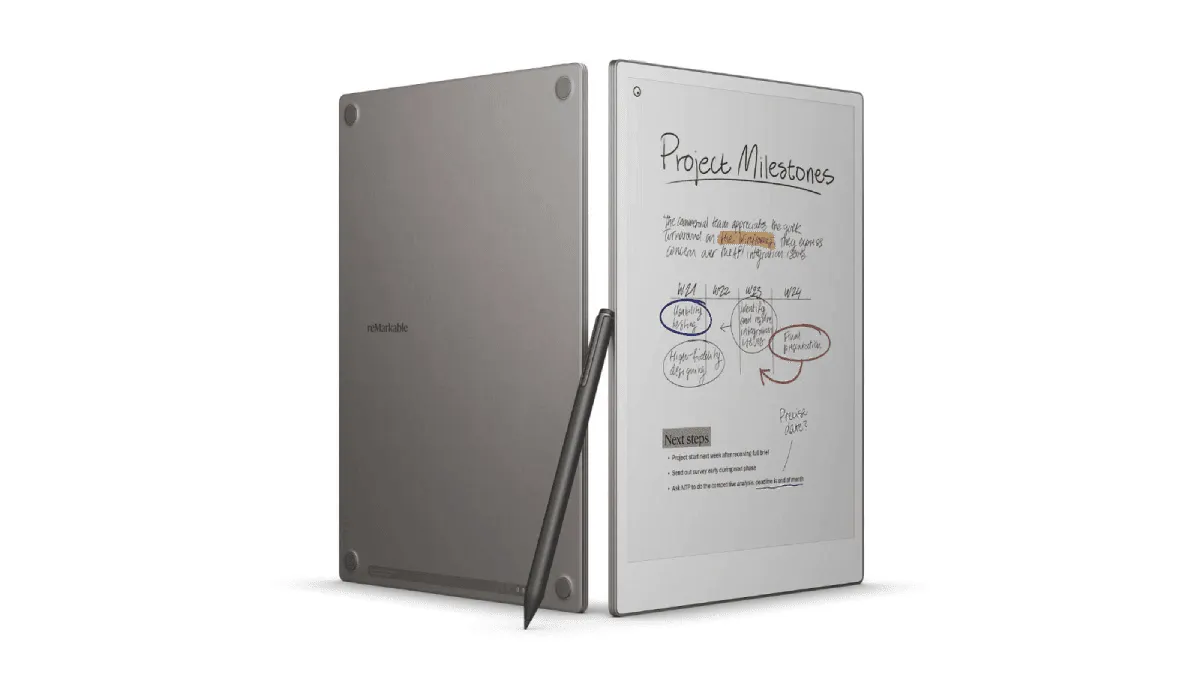
The reMarkable Paper Pro is not an e-reader. I need to get that out of the way upfront because if you walk in expecting a Kindle competitor, you will be disappointed. It is a digital notebook that can also display PDFs and EPUBs — and once I accepted that distinction, I fell hard for this device.
Specs at a Glance
| Feature | reMarkable Paper Pro |
|---|---|
| Screen | 11.8” Canvas Color (E Ink Gallery 3), 229 PPI |
| Front Light | Yes (adjustable) |
| Storage | 64 GB |
| Weight | 525g |
| Battery | Up to 2 weeks |
| Charging | USB-C |
| Stylus | Included (rechargeable Marker) |
| Price | $579 |
I have been using the Paper Pro for just over a month, carrying it everywhere: client meetings, coffee shops, my couch at 11pm when I should be sleeping but instead I am sketching out an idea. If you are a student annotating papers, this thing is a game-changer for marking up PDFs without printing anything. The first thing I noticed when I wrote on it was how much friction the surface has. It’s not quite pencil-on-paper — I’d describe it as a really nice ballpoint on a thick legal pad. There’s a soft give to it that my iPad and Apple Pencil never had. Writing on glass now feels genuinely uncomfortable to me.
The latency is basically invisible. reMarkable claims 12ms, and I believe it. I have tried to catch the ink lagging behind the Marker tip during fast cursive, and I cannot. The stroke appears exactly where I expect it, when I expect it. That sounds like a small thing, but it is what keeps me reaching for the Paper Pro instead of a Moleskine.
Rating: ⭐ 4.5 / 5
Pros
- Best-in-class writing feel — textured surface with just the right friction
- Full 300 ppi E Ink Gallery 3 color, sharper than Kaleido 3 panels
- 12ms pen latency is imperceptible in daily use
- Front light finally makes evening work possible
- Premium build at 525g / 5.1mm with 2-week battery life
Cons
- $579 starting price is steep for a single-purpose device
- Gallery 3 full-page color refreshes take ~1.5s — not suitable for comics
- EPUB reading is bare-bones: no dictionary, no bookstore integration
- Marker and folio accessories sold separately and expensive
Then there is the color. The Paper Pro uses E Ink Gallery 3, which puts actual cyan, magenta, yellow, and white particles inside each capsule. That means you get full 300 ppi color — not the 150 ppi you get from Kaleido 3 panels on color e-readers. The colors are definitely muted next to an iPad screen. Think watercolor rather than neon marker. But for highlighting passages in yellow, blue, and green, it’s genuinely useful and pleasant. I’ve started color-coding my meeting notes and it’s become second nature.
The catch: Gallery 3 refreshes slowly. A full color page refresh takes about a second and a half, with a visible flash. For note-taking, this barely matters — I’m not flipping pages rapidly. But I tried reading a graphic novel on it and the pauses between pages killed the flow. This is not a comic reader.
Speaking of reading: the Paper Pro handles PDFs beautifully. I’ve marked up contracts, annotated research papers, and signed documents directly on the screen. EPUB reading is much more basic — you can adjust font size and margins, but there’s no dictionary, no store, no library integration. I still use my Kindle for novels. The Paper Pro is where I go when I need to think on paper.
The hardware itself is gorgeous. The 11.8-inch screen is the first reMarkable with a front light, and it’s a huge upgrade — I used a reMarkable 2 briefly and not having any light was a dealbreaker for evening work. The Mosaic weave folio is absurdly overpriced at $79 but it looks and feels so good that I bought it anyway and don’t regret it. At 525g and 5.1mm thick, it disappears into my bag. Battery life settles at about two weeks of daily note-taking with the light on.
The Software Ecosystem: More Than Just a Notebook
reMarkable’s software is deliberately minimal, but there’s more to it than the on-device experience suggests. The companion apps — desktop (macOS and Windows) and mobile (iOS and Android) — are where the Paper Pro’s workflow really comes together.
Desktop app: The desktop app mirrors your device in real time. Open a notebook on the Paper Pro, watch it appear on your Mac screen within seconds. You can organize folders, move pages between notebooks, and export individual pages or entire documents as PDF, PNG, or SVG. The export quality is excellent — my handwritten meeting notes exported as vector PDFs look crisp at any zoom level, and the OCR (available through the Connect subscription) is surprisingly accurate given my mediocre handwriting.
Screen Share: This is the killer feature I didn’t expect to use as much as I do. With one tap, your Paper Pro’s screen mirrors to a browser window via a shareable link. I’ve used it to whiteboard architecture diagrams during remote meetings — I sketch on the Paper Pro, the team watches live at remarkable.com/screenshare/[code]. No setup, no cables, no accounts required for viewers. It’s so seamless that colleagues have asked me to use it instead of Miro or Excalidraw because the handwriting feels more natural and the unlimited canvas doesn’t constrain thinking.
Connect subscription ($2.99/month): This enables cloud sync, unlimited cloud storage, handwriting-to-text conversion, and the mobile/desktop apps. The first year is included with the Paper Pro. After that, you’re looking at $36/year. Is it worth it? The cloud sync alone — having every notebook available on your phone for reference — justifies the cost for me. Handwriting-to-text conversion is good enough for searchable notes but not good enough for clean published prose; I still retype anything destined for public consumption. If you’re evaluating the Paper Pro against competitors, our full e-reader comparison guide breaks down how other platforms handle notes and sync.
What’s missing: There’s no web clipper for saving articles, no calendar integration, no shape-drawing tool (you can’t draw a perfect circle or straight line — everything is freehand), no tag system for organizing notes, and the search only works on typed text and file names, not handwritten content (unless you spring for Connect’s handwriting conversion). If you’re coming from something like Notability or GoodNotes on iPad, you’ll feel the absence of these quality-of-life features acutely.
Daily Life With the Paper Pro: A Month In
After 30 days, my usage patterns have settled into something predictable and genuinely useful. Here’s what a typical day looks like:
Morning: I start with a daily planning template I imported as a PDF. It’s a simple page with sections for priorities, schedule, and notes. I fill it out by hand, which forces me to be intentional about what I’m writing — unlike typing into a task manager, where I tend to dump everything and organize nothing. The act of writing slows me down in a good way.
Workday: Meeting notes live in a dedicated folder organized by project. The Paper Pro’s infinite canvas means I never run out of space — I can draw arrows between ideas, scribble diagrams in the margins, and cross-reference earlier pages by writing page numbers. The layers feature lets me overlay sketches on top of imported documents, which I use constantly for marking up design specs and UI mockups.
Evening: This is where the front light earns its keep. Reading research papers and annotating them in bed, light set to warm amber at maybe 20% brightness, feels like actual paper illuminated by a gentle lamp. My iPad at minimum brightness was still blasting my retinas at close range. The Paper Pro at its dimmest setting is genuinely comfortable in a dark room.
The friction I didn’t anticipate: No back button. The reMarkable interface uses gestures exclusively (swipe to go back, pinch to zoom), and there’s a learning curve. For the first week, I kept reaching for a nonexistent home button. The lack of a quick way to jump between recently opened documents also irritates me — you have to navigate back through the folder structure every time. And while the battery lasts two weeks of note-taking, heavy PDF annotation (lots of zooming and panning) cuts that to about 5-6 days.
How the Paper Pro Stacks Up Against Competitors
If you’re shopping for a digital notebook in 2026, the Paper Pro isn’t the only option. Here’s how it compares to the main alternatives. For a deeper dive into the reMarkable vs Boox debate specifically, we have a dedicated comparison.
reMarkable Paper Pro vs Boox Note Air4 C: The Boox is a full Android tablet with an E Ink screen. It runs any Android app — Kindle, Libby, Obsidian, you name it — and has a color Kaleido 3 screen. The reMarkable does one thing (note-taking) and does it better. Writing feel on the Paper Pro is dramatically superior — the Boox feels like writing on a slippery screen protector, while the Paper Pro feels textured and paper-like. But the Boox can be your only device; the Paper Pro cannot. If you want an e-reader and a notebook and an app platform in one device, Boox wins. If you want the best writing experience period, reMarkable wins.
reMarkable Paper Pro vs Supernote A5 X2: Supernote has a cult following for good reason — their ceramic nib pen never wears down, their software includes genuinely useful features like headings (auto-generated table of contents from your handwritten titles), and their file system uses titles and keywords instead of folders. The Supernote feels like software designed by people who take notes; the reMarkable feels like hardware designed by people who love paper. The Supernote’s writing surface is harder and more pen-like; the reMarkable’s is softer and more pencil-like. At $459, the Supernote is meaningfully cheaper. I’d recommend the Supernote for pure text note-taking and PKM (personal knowledge management). I’d recommend the Paper Pro for sketching, diagramming, and document markup — the larger screen and color make a real difference there.
reMarkable Paper Pro vs Kindle Scribe: The 2024 Kindle Scribe is Amazon’s first shot at a note-taking Kindle, and it’s good for what it is — primarily an e-reader with note-taking as a bonus feature. Writing on the Scribe feels fine (better than iPad, worse than reMarkable), but the software is extremely limited: you can only annotate sticky notes on Kindle books, not mark up the pages directly; there’s no handwriting-to-text conversion; and the notebook export options are PDF only. At $339, it’s the budget pick for someone who primarily reads Kindle books and occasionally takes notes. If you want a dedicated digital notebook — not an e-reader with a pen — the Scribe doesn’t compete.
Who Should Buy the reMarkable Paper Pro
This is not a device for everyone. At $579 (plus $79 for a folio, plus $2.99/month after year one), it’s an expensive single-purpose tool. You should buy it if:
- You take handwritten notes daily and have felt the limitations of paper notebooks (no search, no backup, no reorganization)
- You mark up documents professionally — lawyers, academics, editors, and designers who annotate PDFs will find the Paper Pro transformative
- You value focus — the absence of notifications, browsers, and apps is a feature, not a bug. Every time I pick up the Paper Pro instead of my iPad, I do actual work instead of checking email
- You sketch or diagram — the infinite canvas, layers, and pressure-sensitive pen make it a genuinely useful drawing tool for wireframes, flowcharts, and architectural sketches
You should probably skip it if:
- You primarily want an e-reader. For that money, buy a Kindle Paperwhite and pocket the $400 difference
- You need app flexibility. If you can’t live without a specific Android/iOS app, get a Boox device instead
- You’re price-sensitive. The Supernote does 80% of what the Paper Pro does for $120 less, and used reMarkable 2 units are available around $300
At $579 with the Marker, this is not a casual purchase. But for the way I work — lots of handwritten notes, document markup, and brainstorming — the Paper Pro has been worth every dollar. It’s a single-purpose device that does that one purpose extraordinarily well. If you’re a student annotating papers, a writer who thinks better with a pen in hand, or a professional who marks up documents all day, this is the best tool I’ve found. Just don’t expect it to replace a Kindle.