
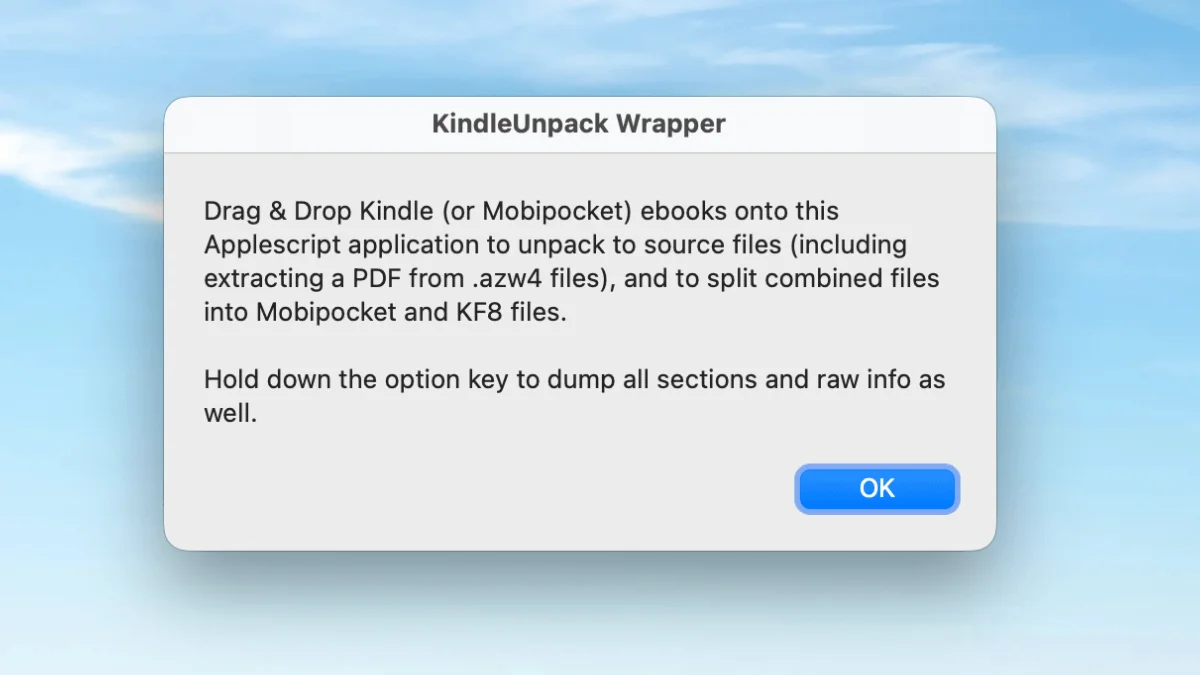
KindleUnpack lets you open any Kindle ebook and extract its source files. If you have ever tried to fix a broken ebook, extract images from a purchased title, or understand how Kindle books are structured under the hood, this is the tool that makes it possible. Unlike a standard format conversion — which blindly transforms one file into another — KindleUnpack gives you the raw HTML, CSS, images, and metadata that make up the book. It is not a converter, not a DRM remover, and not an editor. It is a surgeon’s scalpel for Kindle files.
What KindleUnpack actually does
KindleUnpack (originally called mobiunpack) is a Python tool maintained by Kevin Hendricks on GitHub. It reads Kindle format files — MOBI, AZW3, KF8, and to a limited extent KFX — and unpacks them into their component parts:
- HTML/XHTML — the full text content of the book, split into individual chapter files when the publisher structured it that way
- CSS — the styling rules that control fonts, margins, alignment, drop caps, and everything visual
- Images — cover art, illustrations, maps, diagrams, and any embedded graphics, extracted at the highest resolution stored in the file
- NCX and TOC files — the navigational table of contents that lets readers jump between chapters
- OPF metadata — title, author, publisher, ISBN, language, and other catalog information
- Fonts — any embedded typefaces the publisher included for custom typography
The output folder structure tells the story:
output_folder/
├── mobi7/                 # Older MOBI format (KF7)
│   ├── book.html
│   └── images/
├── mobi8/                 # Newer KF8/AZW3 format
│   ├── book.html
│   ├── styles.css
│   └── images/
├── raw/                   # Raw binary markup data
├── metadata.opf
├── toc.ncx
└── cover.jpg
Kindle files are actually dual-format containers — they carry both an older MOBI version for compatibility with first-generation Kindle devices and a modern KF8/AZW3 version that supports enhanced typography, embedded fonts, and fixed-layout pages. KindleUnpack extracts both, giving you the choice of which to work with.
KindleUnpack vs KindleGen vs Calibre conversion
These three tools get confused constantly, so let me draw the lines clearly.
KindleUnpack reverses the Kindle publishing process. It takes a compiled Kindle file and breaks it back into editable source files. Think of it as decompiling. You use it when you need to see or change what is inside a Kindle book.
KindleGen (and its successor Kindle Previewer) does the opposite — it compiles EPUB or HTML source files into a Kindle-format book. It is Amazon’s official publishing tool, and the output it produces is what gets distributed through the Kindle Store. You use it after editing the files that KindleUnpack extracted, when you want to rebuild a working book.
Calibre’s built-in conversion is a different beast entirely. Calibre converts between formats by parsing the source book into an internal representation and then writing it out in the target format. It does not extract source files for you to edit — it automates the whole pipeline. Calibre conversion is the right tool when you just want to read an EPUB on your Kindle. KindleUnpack is the right tool when you need to fix something that Calibre’s conversion got wrong.
Here is a practical way to think about it: if Calibre conversion produces a book with broken chapter detection or mangled images, you use KindleUnpack to open the source file, find the structural problem in the HTML, fix it manually, and then rebuild with KindleGen. That workflow — Unpack → Edit → Rebuild — is what KindleUnpack was built for.
Installation and first use
KindleUnpack installs in two ways, and which you pick depends on your workflow.
As a Calibre plugin (recommended for most users)
This is the easiest route if you already use Calibre. The plugin integrates directly into Calibre’s right-click menu, so you can unpack any book in your library without leaving the application.
- Open Calibre → Preferences → Plugins
- Click Get new plugins at the bottom of the dialog
- Type “KindleUnpack” into the search bar
- Select it from the results and click Install
- Restart Calibre
After installation, right-click any book in your Calibre library and choose KindleUnpack → Extract PDF/EPUB/Kindle. You will be asked to pick an output directory, and the plugin handles everything else. The extracted files appear in a folder named after the book.
As a standalone command-line tool
If you prefer working in a terminal or want to script batch operations, install via pip:
pip install kindleunpackThen run it against any Kindle file:
kindleunpack mybook.azw3 ./outputThe CLI gives you the same output as the plugin. It is faster for bulk processing — you can loop over an entire directory of Kindle files with a one-liner — but lacks the convenience of Calibre integration.
Both versions share the same core extraction engine, so there is no quality difference between them. Pick the one that fits how you work.
Formats KindleUnpack handles (and the ones it does not)
KindleUnpack has excellent support for legacy Kindle formats and good support for the KF8 generation. Newer KFX format support is limited and actively being developed.
| Format | Support | Notes |
|---|---|---|
| MOBI (KF7) | Full | The original Kindle format. Extracts completely. |
| AZW3 (KF8) | Full | Amazon’s enhanced format with CSS and embedded fonts. Extracts completely. |
| AZW | Full | Older Amazon-specific wrapper. Essentially MOBI under the hood. |
| PRC | Full | Palm-era MOBI variant. Still in circulation. |
| KFX | Partial | Amazon’s current format. Extraction is lossy — some layout and typography features do not survive the round-trip. |
| EPUB | N/A | KindleUnpack does not handle EPUB files. Use Calibre or Sigil for EPUB inspection. |
| N/A | KindleUnpack does not handle PDFs. |
The KFX limitation is worth understanding. Amazon introduced KFX around 2015 as a replacement for KF8, adding enhanced typesetting features like hyphenation, kerning, and ligature control. KFX files are far more complex internally than the older formats, and KindleUnpack’s KFX support is still maturing. If you have a KFX file and need full extraction fidelity, your best current option is to convert it to AZW3 with Calibre first, then unpack the AZW3. You lose some of KFX’s typographic enhancements, but the core content and structure come through intact.
Common use cases
Fixing a broken ebook
This is the reason KindleUnpack was created and still the most common use case. You buy an ebook, transfer it to your Kindle, and something is wrong — chapter headings are missing, the table of contents does not work, images are displayed at the wrong size, or the text has weird encoding artifacts. Calibre conversion sometimes fixes these issues automatically, but when it does not, KindleUnpack lets you fix them by hand.
The workflow is straightforward: unpack the broken file, open the HTML in a code editor (VS Code, Sublime Text, or even Notepad), fix whatever is wrong, and then rebuild the book with KindleGen or Calibre. Common fixes include correcting mismatched heading tags (publishers occasionally mark chapter titles with <p> instead of <h1>), removing inline styles that override the reader’s font settings, and fixing image references that point to the wrong directory.
Extracting high-resolution images
Ebook publishers often include higher-resolution images than what the Kindle’s default view displays — maps in fantasy novels, diagrams in non-fiction, photographs in biographies. KindleUnpack extracts these images at the maximum resolution stored in the file, which is usually higher than what you see on the screen.
After unpacking, browse to the mobi8/images/ folder. The images there are named sequentially (image00001.jpg, image00002.jpg, etc.) and are the original files embedded by the publisher. Copy the ones you want. This is especially useful for preserving cover art at full fidelity — the cover image stored in a Kindle file is typically the same resolution as the Amazon store listing.
Studying professional ebook structure
If you are learning to create ebooks or troubleshooting your own formatting, there is no better teacher than a professionally produced Kindle book. Unpack a well-formatted title from a major publisher — something from Tor, Penguin, or HarperCollins — and study the HTML and CSS. Pay attention to how they structure chapter files, what CSS properties they use for drop caps and section breaks, and how they handle the table of contents. You will learn more from an afternoon of reading real publisher markup than from any tutorial.
A few things to look for: semantic HTML that uses <h1> through <h6> correctly for heading hierarchy, CSS that relies on relative units (em, %) rather than fixed pixel values so the text reflows properly across screen sizes, and separate CSS files for print vs screen media when the publisher put real effort into the ebook edition.
Converting AZW3 to older MOBI
KindleUnpack is useful for stripping KF8 enhancements when you need to produce a compatible MOBI file for older devices that cannot read AZW3. The process: unpack the AZW3, discard the mobi8/ folder (the KF8-specific content), keep the mobi7/ folder, and repackage with KindleGen set to output MOBI format. The resulting file will work on first-generation Kindles and very old Kindle apps that never received KF8 support.
This is a niche need in 2026 — most Kindles in active use support AZW3 — but it still comes up for people maintaining compatibility with legacy devices or sharing files with readers in regions where older Kindles remain common.
Troubleshooting common errors
| Problem | Likely cause | What to try |
|---|---|---|
| “Not a valid Kindle file” | The file is DRM-protected, or it is not actually a Kindle format file | KindleUnpack cannot remove DRM and will not even open DRM-protected files. If you legally own the book, remove DRM with the appropriate Calibre plugin first, then unpack |
| Missing images after extraction | Images are stored in the mobi8 subfolder | Check mobi8/images/ — most publishers place images only in the KF8 version. The mobi7 version often omits them to save space |
| Garbled or unreadable HTML | The publisher used a minified or obfuscated HTML structure | Try the mobi7/ version instead of mobi8/. Some publishers minify the KF8 HTML aggressively. You can also run the extracted HTML through a formatter like Prettier to make it readable |
| Script errors during extraction | Python version mismatch or corrupted source file | Make sure you are running Python 3.8 or later. The pip-installed version of KindleUnpack is maintained for current Python releases. If the error persists, try opening the file in Calibre first and converting it to AZW3 — this sometimes repairs minor corruption before extraction |
| Plugin not appearing in Calibre | Plugin was installed from an extracted folder instead of a .zip file | Calibre plugins must be installed from the compressed .zip archive, not from an unzipped folder. Download the .zip from GitHub and install that file directly |
| Output folder is empty or nearly empty | The book is an unusual format or was generated by a non-standard tool | Try converting the book to AZW3 with Calibre first, then unpack the AZW3 version. Calibre’s conversion normalizes the internal structure |
Limitations to know about
KindleUnpack is excellent at what it does, but what it does not do is equally important to understand before you rely on it.
First and most critically, KindleUnpack cannot and will not remove DRM. If you try to unpack a DRM-protected file, it will simply refuse with an error message. DRM removal is a separate process handled by other tools, and you should only use those tools on books you legally own for personal format-shifting purposes. The legal landscape varies by jurisdiction, so know your local laws.
Second, KFX support is incomplete. Amazon has been moving its entire catalog to KFX format, and newer books are increasingly delivered as KFX only. KindleUnpack can extract some content from KFX files, but layout features like enhanced typesetting, pop-up footnotes, and page-flip preview data are lost in the process. If you need to work with KFX files regularly, keep an eye on the KindleUnpack GitHub repository — the developer continues to improve KFX handling, and each release gets closer to parity with the AZW3 extraction quality.
Third, output quality depends on the publisher. Some publishers produce clean, well-structured ebook files with semantic HTML, organized CSS, and properly nested metadata. Others ship minified, obfuscated, or machine-generated markup that is nearly impossible to edit by hand. KindleUnpack faithfully extracts whatever the publisher put in — it does not clean up or prettify the source. You get the raw materials, for better or worse.
Finally, round-trip fidelity is not guaranteed. Unpacking a Kindle book and then rebuilding it with KindleGen or Calibre will not produce a bit-for-bit identical file. Minor differences in whitespace, CSS ordering, and internal file structure are normal and usually harmless, but if you need to preserve the exact byte-level content of a file (for archival purposes, for example), unpacking and repacking is not the right approach.
For most hands-on ebook work — fixing broken formatting, extracting assets, studying how commercial ebooks are built — KindleUnpack is the right tool and there is not a close second. It fills the gap between automated conversion tools and the raw source files that make up every Kindle book.